
The search function can be used by Account Owners and Team Members (within their access scope).
Regular visitors of a gallery cannot use the search function. For them, however, the filter bar on the left side of the gallery is still available in Collaboration Mode. It can be used to search and find filenames in the current gallery.
With the advanced search in picdrop, you can search gallery names, file names, and IPTC metadata.
The search can be opened at any time via the search bar at the top of the screen or by using the keyboard shortcut cmd/ctrl + F. If the search is started from within a gallery, you can choose whether to search only that gallery (including sub-galleries) or the entire account.
The following IPTC metadata fields can be displayed and searched for in picdrop:
Multiple search terms can be entered separated by commas (e.g. shooting, beach), and results will be shown that contain one or more of these terms. Terms in quotation marks (e.g. "shooting beach") are searched as an exact phrase.
After your search results are listed, you can jump to the desired image with one click.
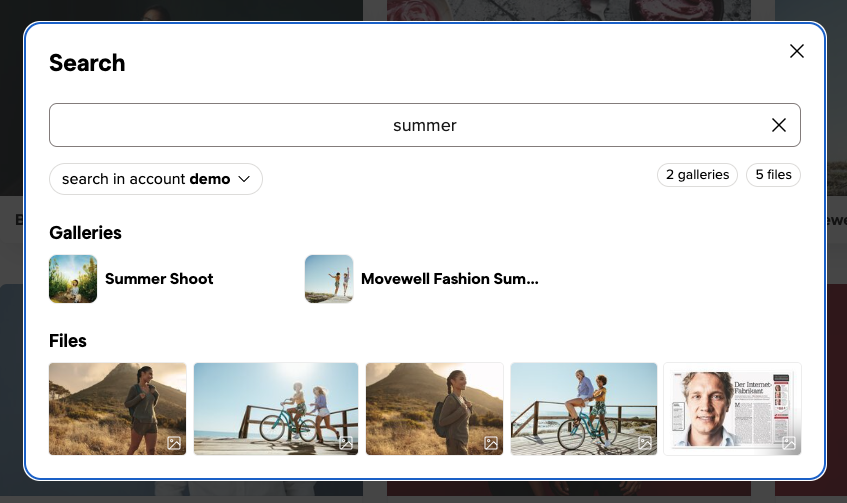
You can also open each of the results in a separate tab with CMD-click or right-click.
You can also use the search function to download search results in bulk or add them directly to a collection. We’ll explain how to do this here.
The global search is available only to account owners and team members; visitors can use only the filter bar within individual galleries.
Your picdrop account is equipped with a search function. This can be accessed at any time via the bar at the top of the screen when you are logged into your account. Click on the magnifying glass icon in the upper right corner:
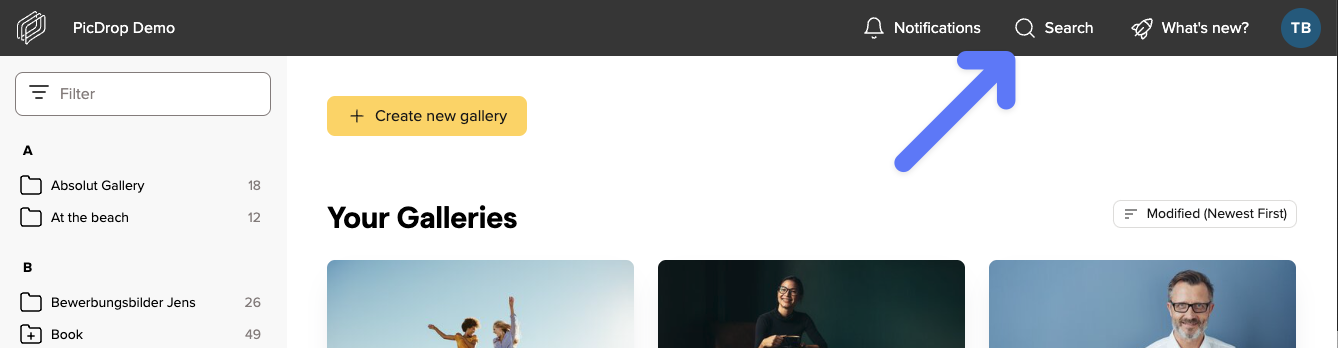
You can also start the search with the keyboard shortcut cmd-F / ctrl-F.
If you start a search while you are in the gallery dashboard, your entire account will be searched for your search term.
When searching within a gallery, you can choose to search the entire account or just the current gallery.
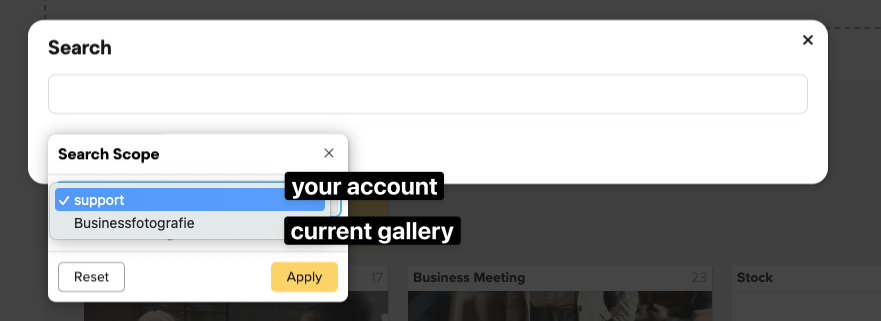
If you only want to search the current gallery, you can also select whether the sub-galleries should be included in your search or not.
You can also use the search function to download search results in bulk or add them directly to a collection. We’ll explain how to do this here.
In picdrop there are two search and filter tools:
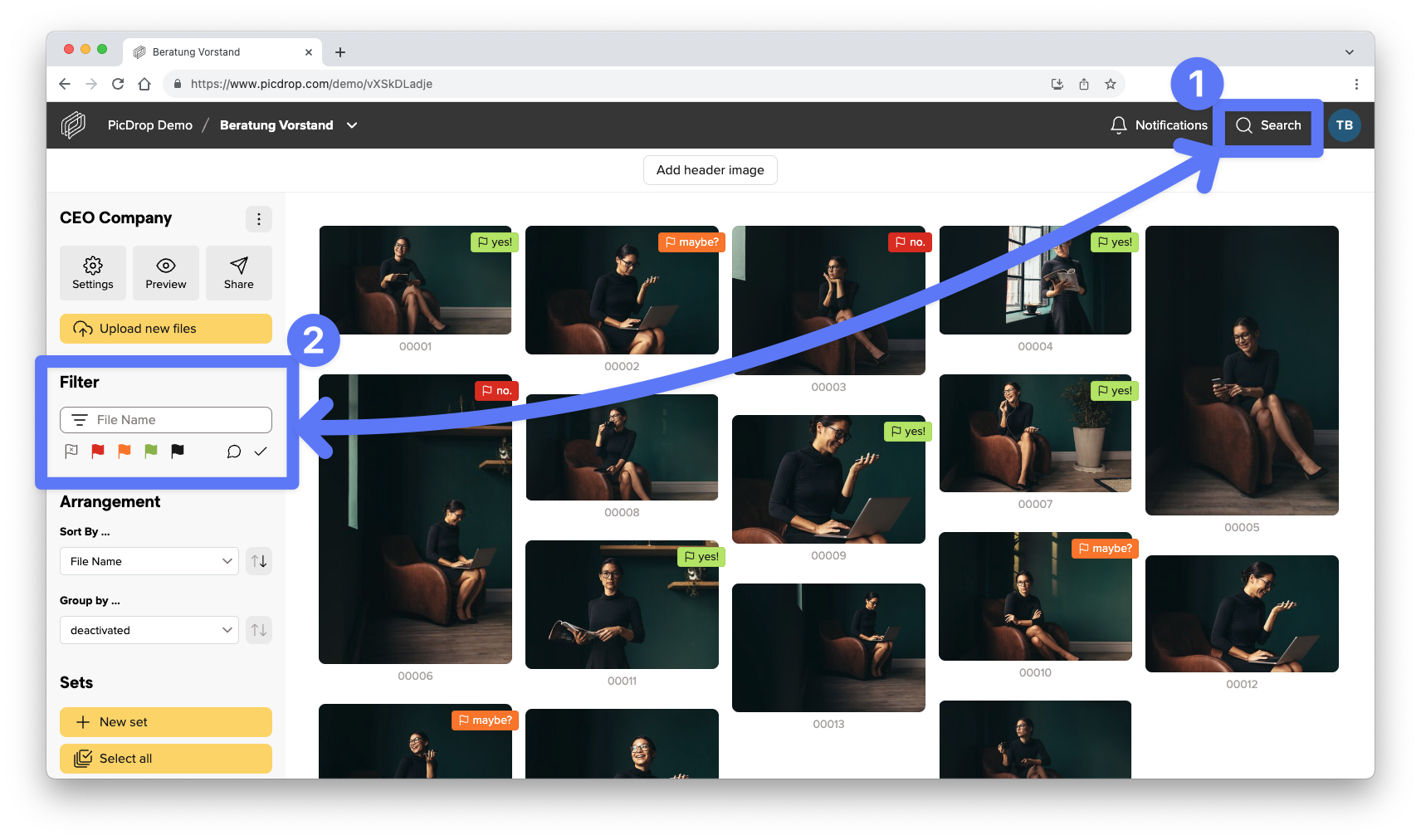
These differ in who has access to them, what can be searched for and from which area results are found.
Here you can find a short list of who can use what – and where to search for what:
The search bar (through the magnifying glass symbol)
… is available for Account Owners and Team Members.
… searches file names, gallery names and IPTC metadata.
… finds results in the whole account or only the current gallery and its sub-galleries (depending on which section you have selected).
You can also use the search function to download search results in bulk or add them directly to a collection. We’ll explain how to do this here.
The filter bar
… is accessible for Account Owners, Team Members, and your regular clients who use a gallery link.
… only filters the filenames of the gallery you are currently in.
… shows results directly the gallery you are in at the moment.
With the search function, you can easily find images from different galleries. Once you have found several suitable images, you can download them together or add them to a collection – even if they are located in different galleries.
How do I select images in the search?
Open the search in your picdrop account and search for the images you would like to find. You can then select individual images or select all images. Using the bar on the right, you can either download the selected images together or add them to a collection.
Please note that only files can be selected – galleries themselves cannot be selected.
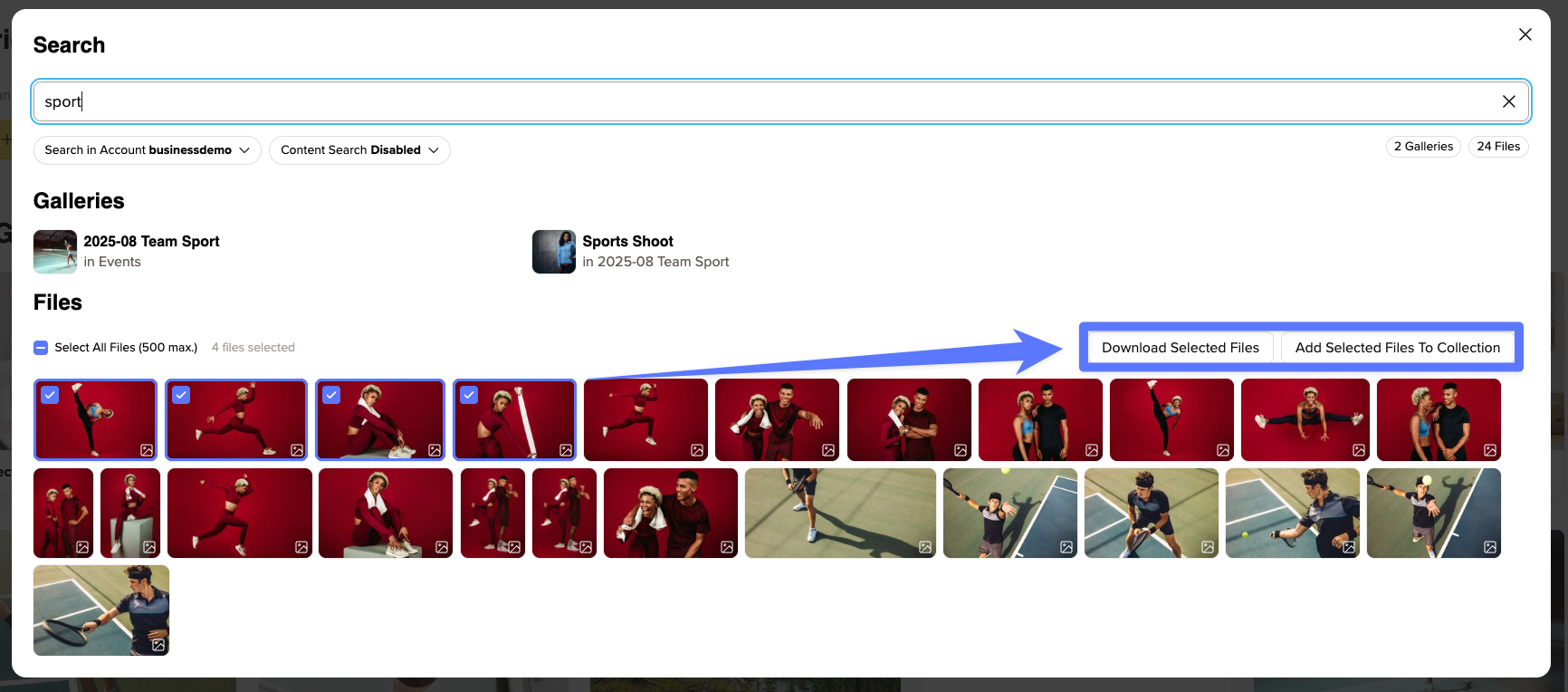
Download selected images
Click “Download” to download all selected images in a ZIP file. The images can come from different galleries.
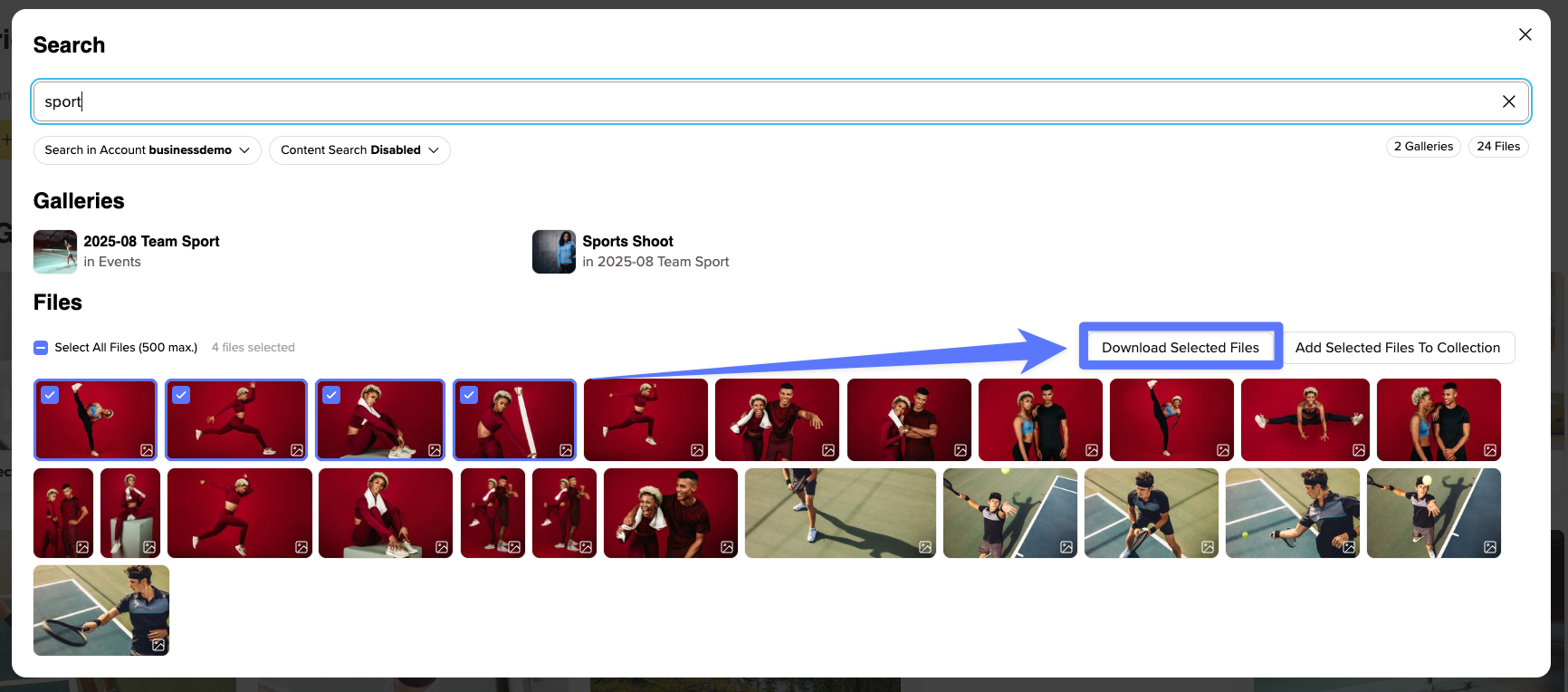
Whether an image can be downloaded depends on the settings of the respective gallery:
You can still select unavailable images, for example images from locked galleries. Before downloading, you will see how many of them will not be included in the ZIP file. If none of the selected images can be downloaded, the download button will be disabled.
Add selected images to a collection
Would you like to collect the images you have found in one place? You can add them directly from the search to an existing or new collection.
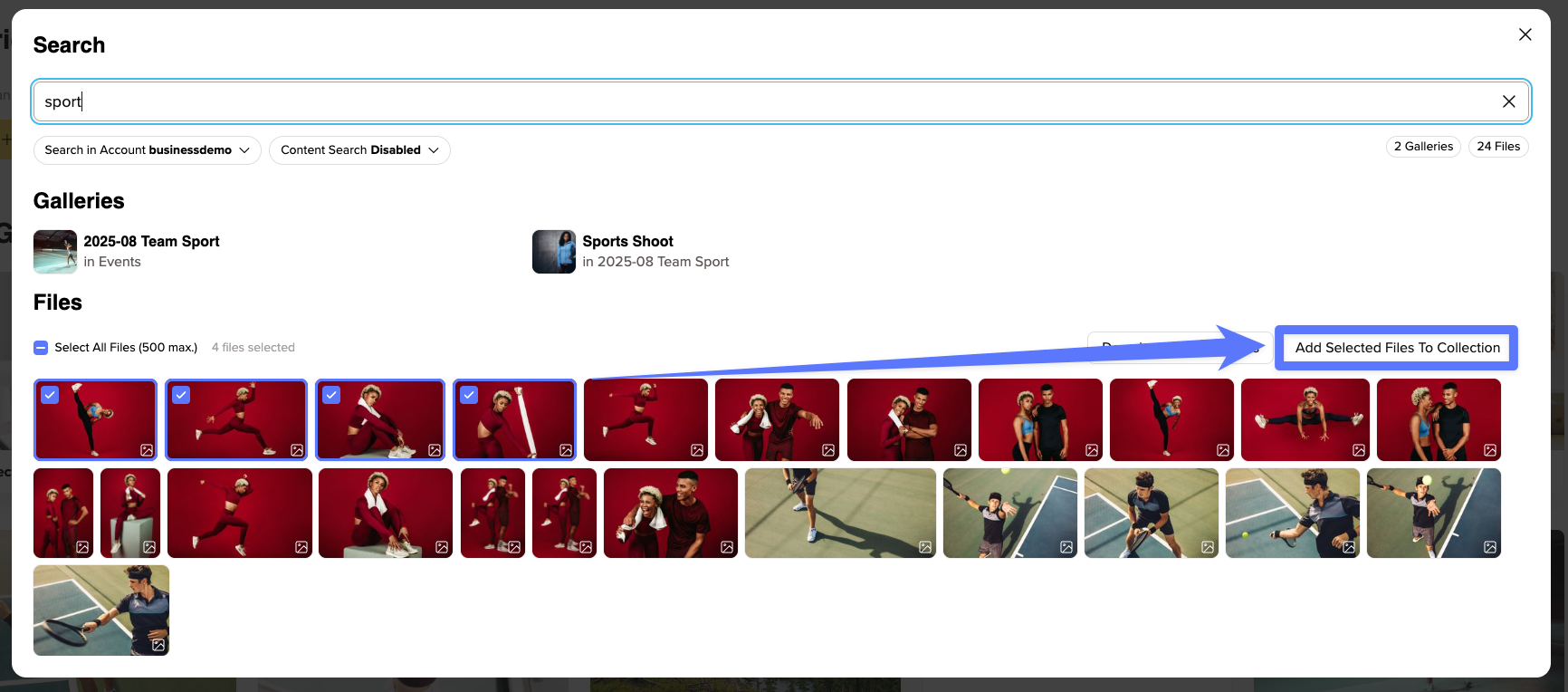
As the account owner, you can add images to your collections at any time. Team members need write access to the respective gallery as well as access to all collections. If this permission is missing, the option will not be displayed.
Images from locked galleries cannot be added to a collection.
What else should I keep in mind?
You can select up to 500 images at a time – both for downloading and for adding them to a collection.
By selecting “Select all”, only the search results that have already been loaded will be selected. If you would like to select further results, scroll down first to load them.
Once you close the search, your selection will be reset.
Please also note that downloads made through the search will not appear in your accounts activities.