
Your picdrop account is equipped with a search function. This can be accessed at any time via the bar at the top of the screen when you are logged into your account. Click on the magnifying glass icon in the upper right corner:

You can also start the search with the keyboard shortcut cmd-F / ctrl-F.
If you start a search while you are in the gallery dashboard, your entire account will be searched for your search term.
When searching within a gallery, you can choose to search the entire account or just the current gallery.
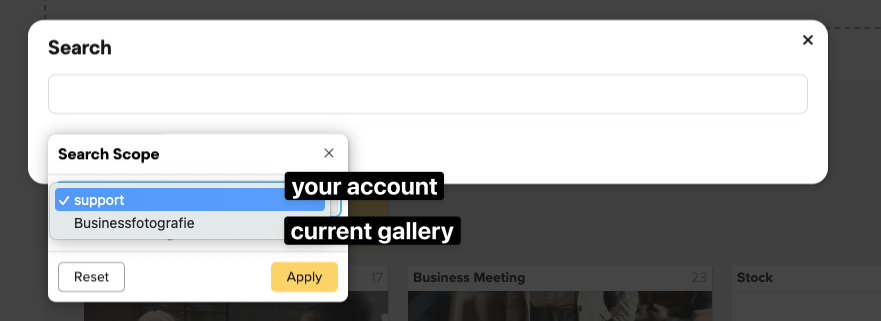
If you only want to search the current gallery, you can also select whether the sub-galleries should be included in your search or not.
You can also use the search function to download search results in bulk or add them directly to a collection. We’ll explain how to do this here.