
With the search function, you can easily find images from different galleries. Once you have found several suitable images, you can download them together or add them to a collection – even if they are located in different galleries.
How do I select images in the search?
Open the search in your picdrop account and search for the images you would like to find. You can then select individual images or select all images. Using the bar on the right, you can either download the selected images together or add them to a collection.
Please note that only files can be selected – galleries themselves cannot be selected.
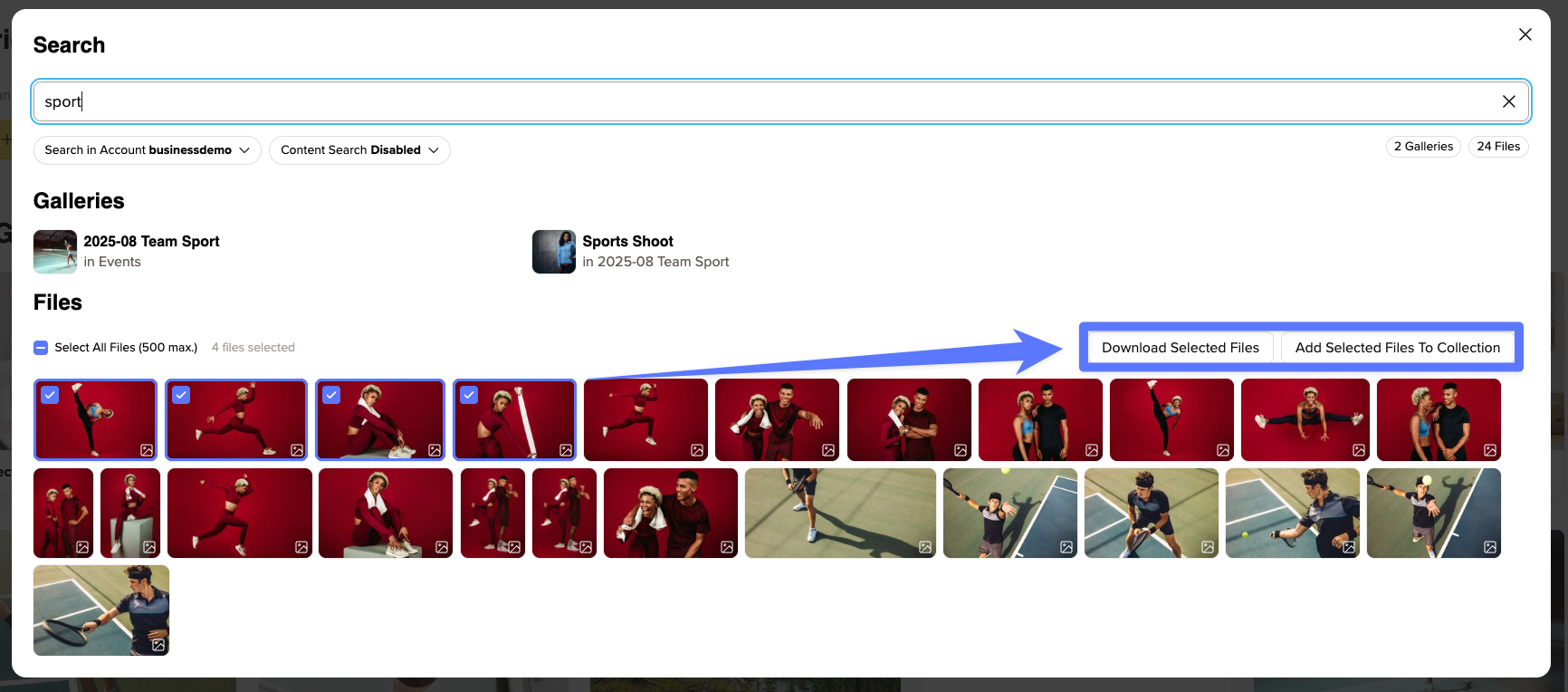
Download selected images
Click “Download” to download all selected images in a ZIP file. The images can come from different galleries.
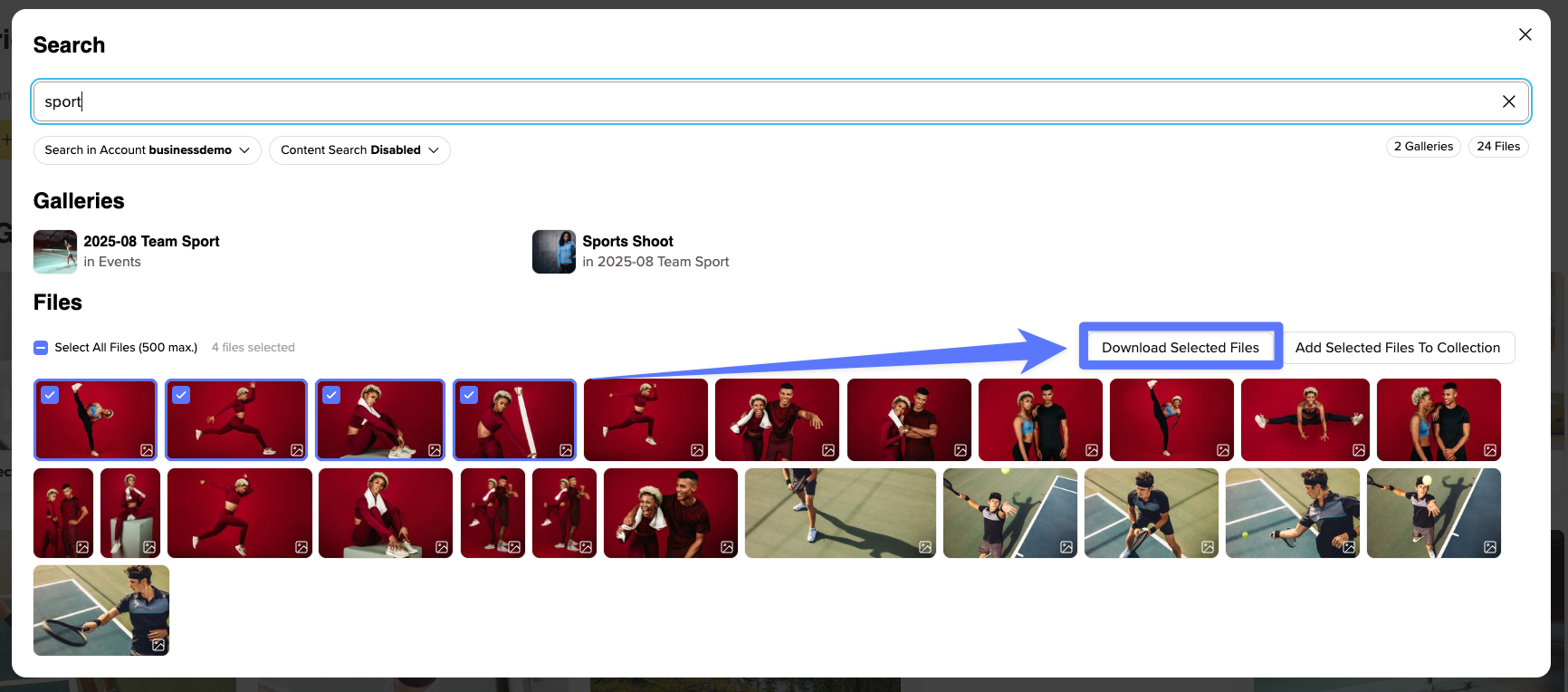
Whether an image can be downloaded depends on the settings of the respective gallery:
- As the account owner or a team member with write access, you can download images even if downloads are disabled in the gallery.
- Team members with read-only access can only download images if downloads are enabled in the respective gallery.
- Images from archived or locked galleries, as well as images that are still processing, cannot be downloaded.
You can still select unavailable images, for example images from locked galleries. Before downloading, you will see how many of them will not be included in the ZIP file. If none of the selected images can be downloaded, the download button will be disabled.
Add selected images to a collection
Would you like to collect the images you have found in one place? You can add them directly from the search to an existing or new collection.
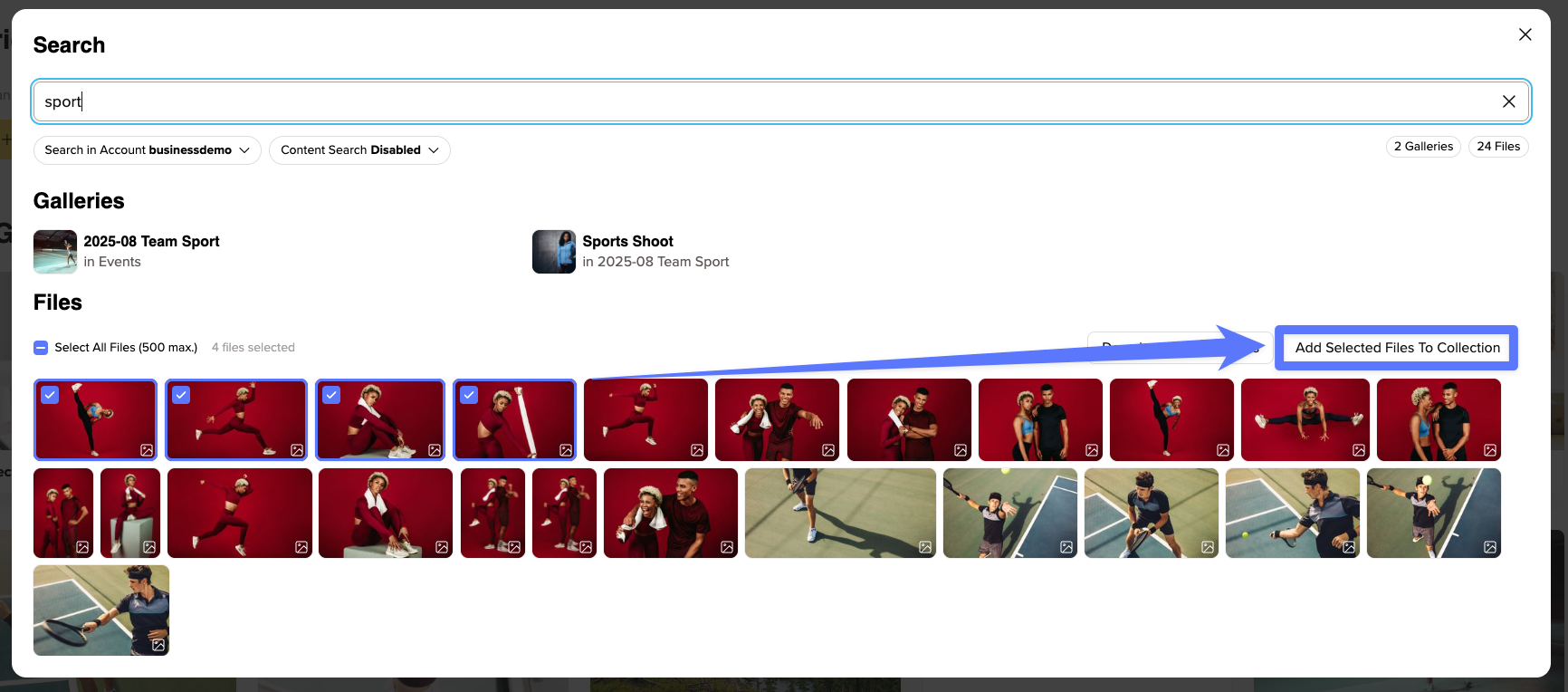
As the account owner, you can add images to your collections at any time. Team members need write access to the respective gallery as well as access to all collections. If this permission is missing, the option will not be displayed.
Images from locked galleries cannot be added to a collection.
What else should I keep in mind?
You can select up to 500 images at a time – both for downloading and for adding them to a collection.
By selecting “Select all”, only the search results that have already been loaded will be selected. If you would like to select further results, scroll down first to load them.
Once you close the search, your selection will be reset.
Please also note that downloads made through the search will not appear in your accounts activities.