
You can easily move or copy files from their current gallery to another gallery in picdrop.
This is a step by step guide on how to do this.
First select the files you want to move or copy. To do so, click on the blue plus sign that appears in the upper left corner of the file when hovering the mouse over it.
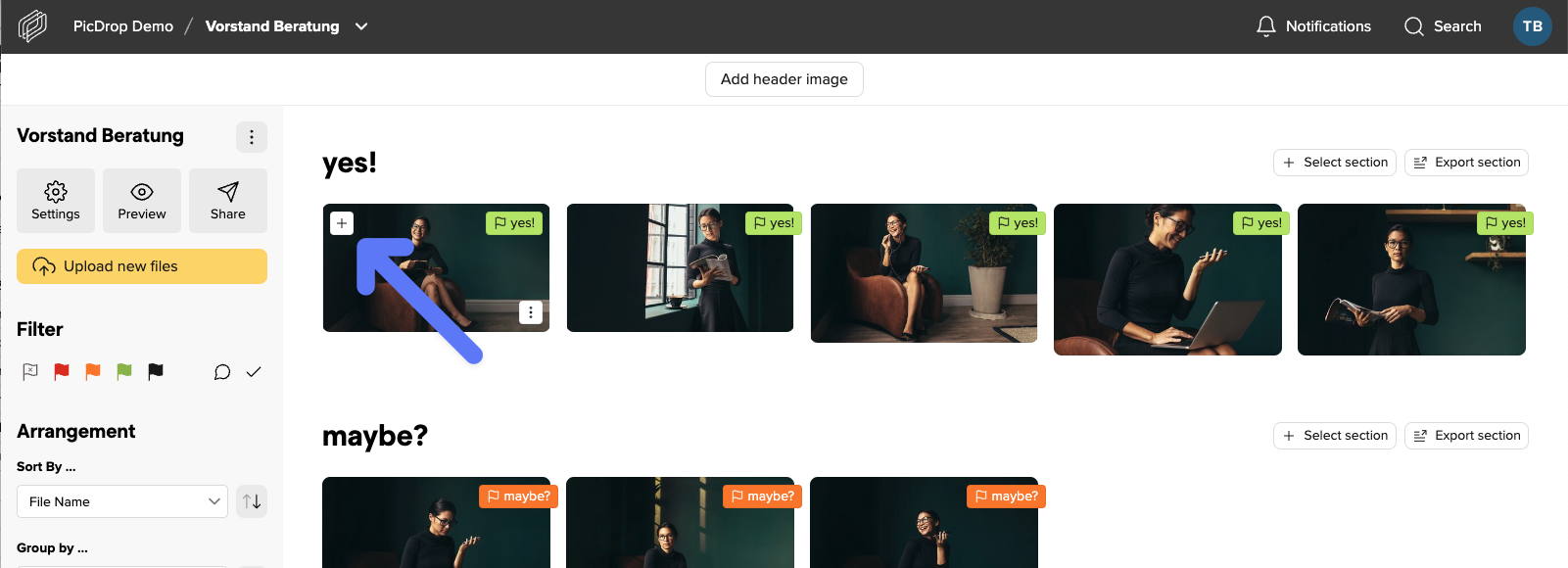
Pro tipp: You can also quickly select any number of files to copy or move from a saved set or any filter set in the filter bar.
When you have selected all files, click on the Move / Copy icon located in the export bar at the bottom of the screen.
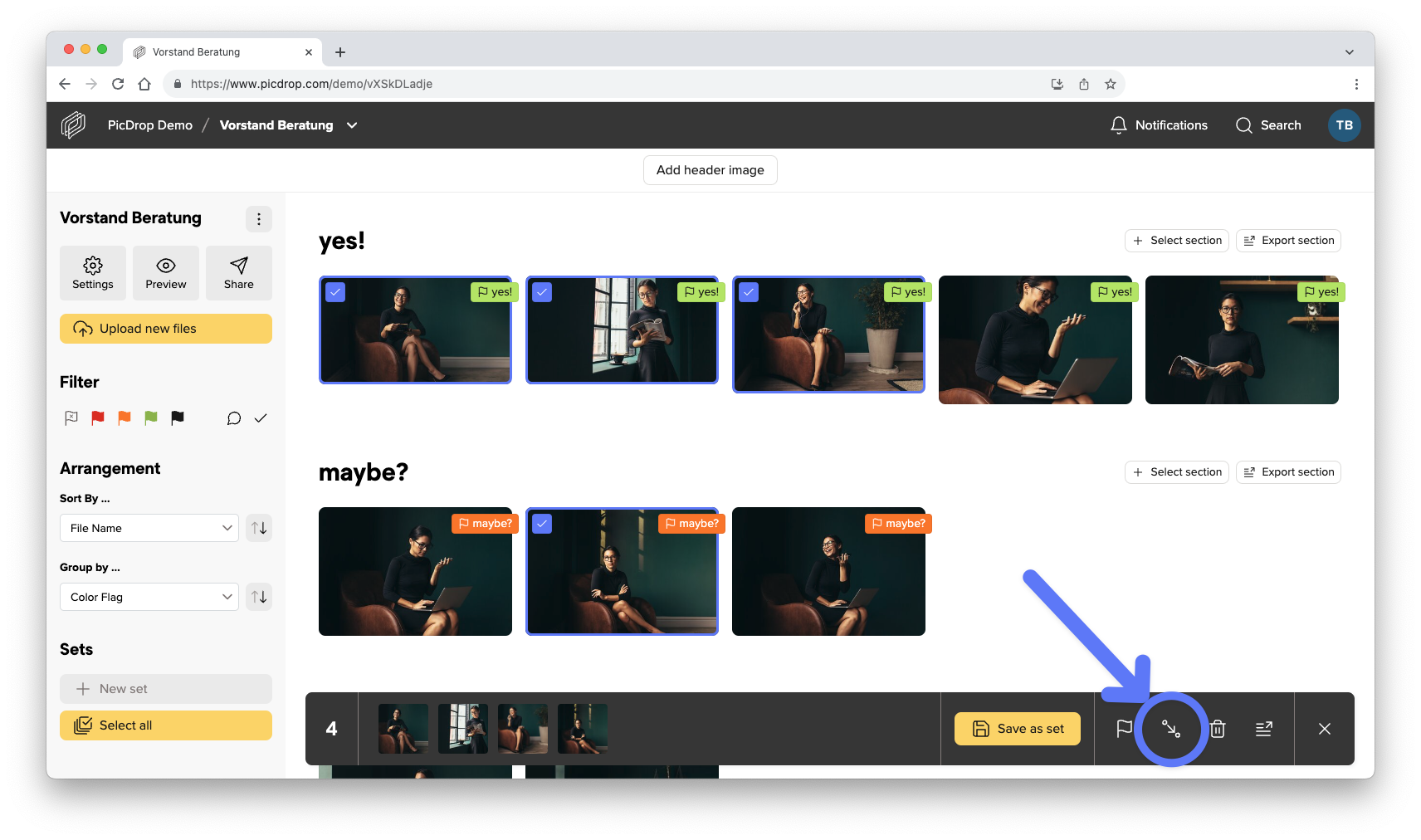
In the opening menu you can now choose whether you want to move or copy the files.
Select the desired target gallery in the list of your galleries or simply create a new gallery in the lower left corner.
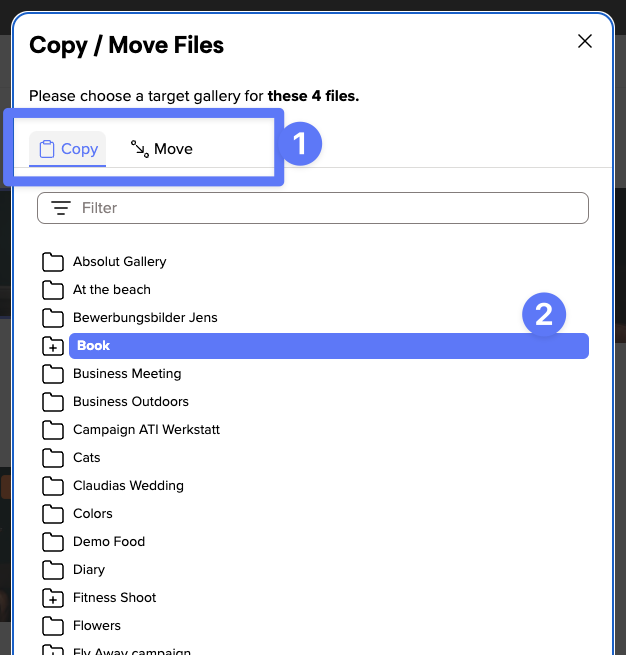
Confirm the selected action with the button at the bottom right.
The success message shows you that all files have been copied or moved.

With a click on the button “Go to target gallery” you will be taken directly to the target gallery.