
Every gallery you create in picdrop can have a header image. The header image is the first thing you and your gallery visitors see at the top. In Collaboration Mode the header image is displayed in a narrow landscape format across the entire width. If your gallery starts in Presentation Mode, the header image is displayed as an opener across the entire browser window.
Does every gallery automatically have a header image?
No – unlike the gallery image, which we automatically create for you as soon as you upload images to a gallery, the header image for a gallery is not set automatically. So you are free to decide if you want your galleries to have a header image and which image you want to use for it.
How do I set and change the header image?
For each gallery you can set the header image in several ways. You can choose a header image that is already uploaded to the gallery. You can also upload an image directly from your hard drive, without it having to be in the gallery.
You can change the header image in these places:
01 – the desired image is already in the gallery
Click on the three dots on the desired image and select “Set as header image” from the menu. In the next step, set the focus point for the header image. Confirm everything with the yellow “Done” button and the header image will be displayed in the gallery.
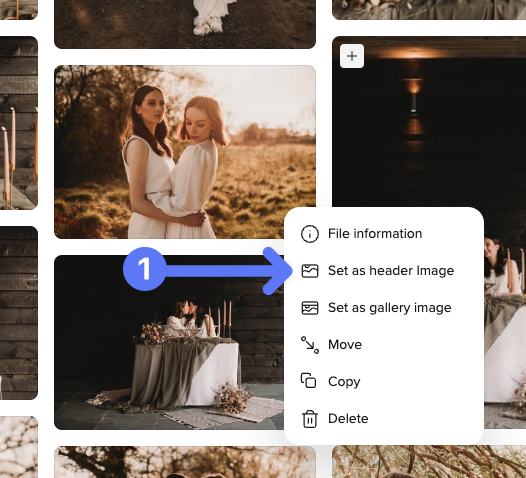
Alternatively, you can simply drag and drop the image into the header image bar at the top of the gallery.
02 – the image is not in the gallery
Then just click the gray “Add header image” button at the very top of the gallery.

The dialog for changing the header image will open. You can then drag an image from your computer directly into the dialog or select it from your hard drive using the “Upload image” button.
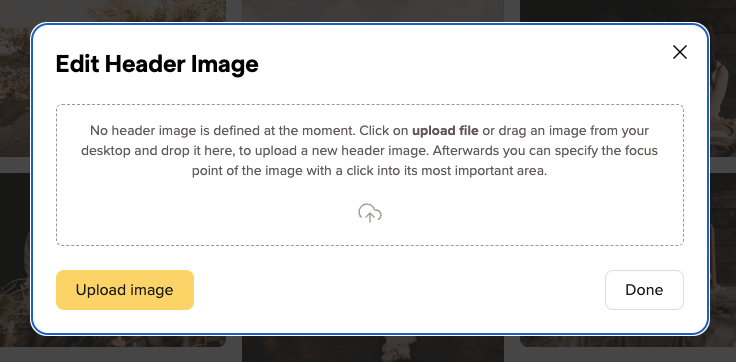
If you want it to be even faster, you can also drag and drop the image from your computer directly onto the header image bar to open the menu.
How can I crop the header image? And what is the focus point?
First, a brief explanation:
We display the header image in a wide variety of places in very different aspect rartios.
- If your gallery starts in Collaboration Mode the header image is displayes in a 2:1 ratio.
- If your gallery is in Presentation Mode, the header image automatically fills up the entire browser window and adapts to the aspecht ratio of the window.
- If a gallery is opened on a smartphone, the same header image is displayed in portrait mode.
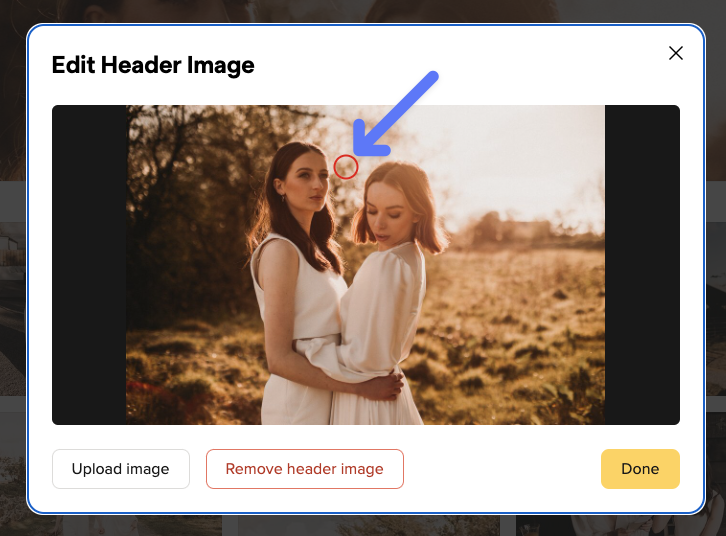
To make sure your header image is perfectly tailored for every possible use, you can to set a focus point for your header images. With the focus point you mark the most important part of your image and picdrop automatically creates the right header image for all screen sizes. This is how it works:
With the red circle you click on the most important part of your image that should always be displayed – no matter with which crop and which aspect ratio we display the header image in a gallery.
Tip for choosing the header image:
The best photos to use as header images are those that have a clear main subject, ideally set against a relatively calm background. This way, the title of the gallery also has enough space when you set up the gallery in Presentation Mode.
What size should my header image be?
We recommend that you use the highest resolution possible. With 4000px or more in width we have enough resolution for all possible crops of the header image and can display it perfectly – no matter if on a smartphone, tablet or a 4k display.