
We updated our FTP system, which means you’ll need to adjust the corresponding login credentials in your FTP program or for your Lightroom Plugin.
You’ll find your new login details in your account settings under FTP.
This article shows:
- how to create your new FTP login data in picdrop
- how to set up the new login in the following programmes
- Lightroom
- some common FTP clients
- some cameras via Live Push
- Photo Mechanic
1. The First Step is always to create a new login
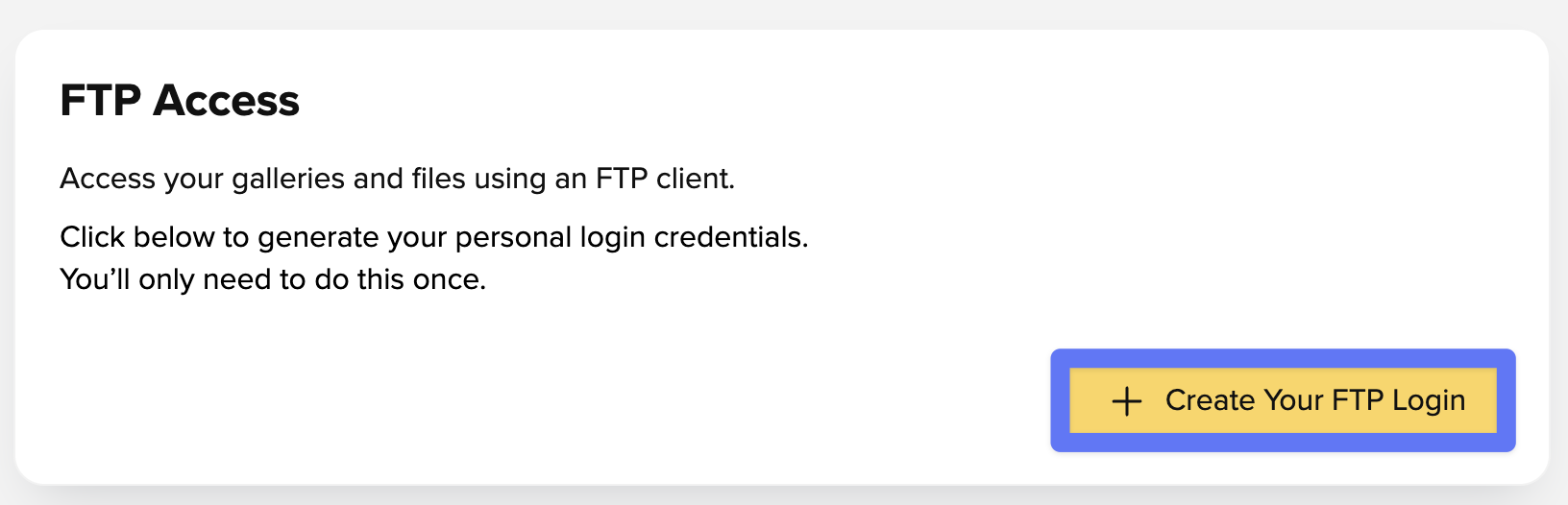
- Click on Create Your FTP Login
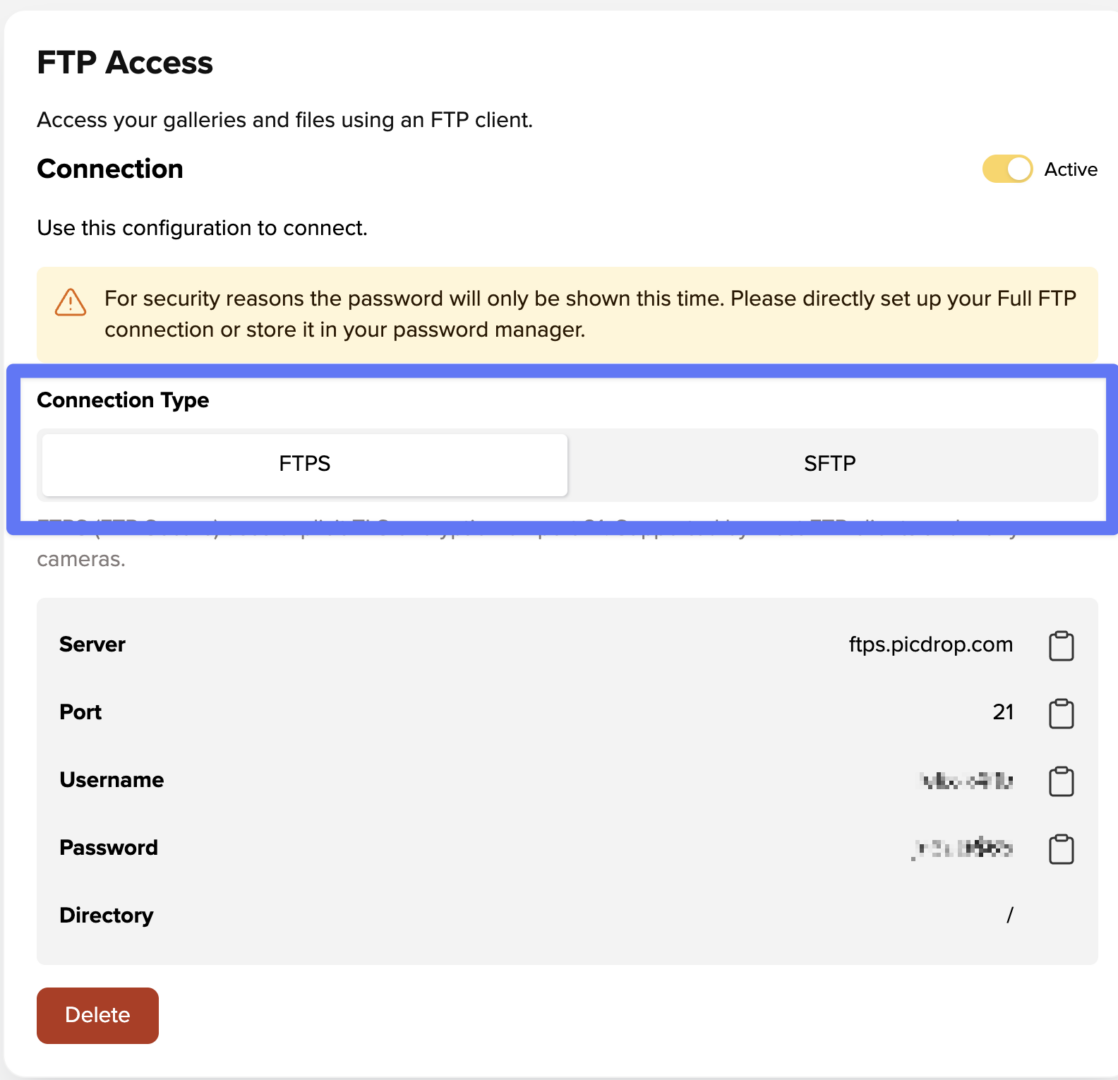
- At the top, you can use the toggle to switch between the connection types FTPS and SFTP.
- The password is only shown once at the beginning, so it’s important to you save it immediately. Alternatively, you can also reset it at any time.
- !! IMPORTANT: if you are using the Lightroom Plugin you need to use SFTP as the connection type and port 22.
2. The second step is to change the login data in your used programme
Lightroom Classic
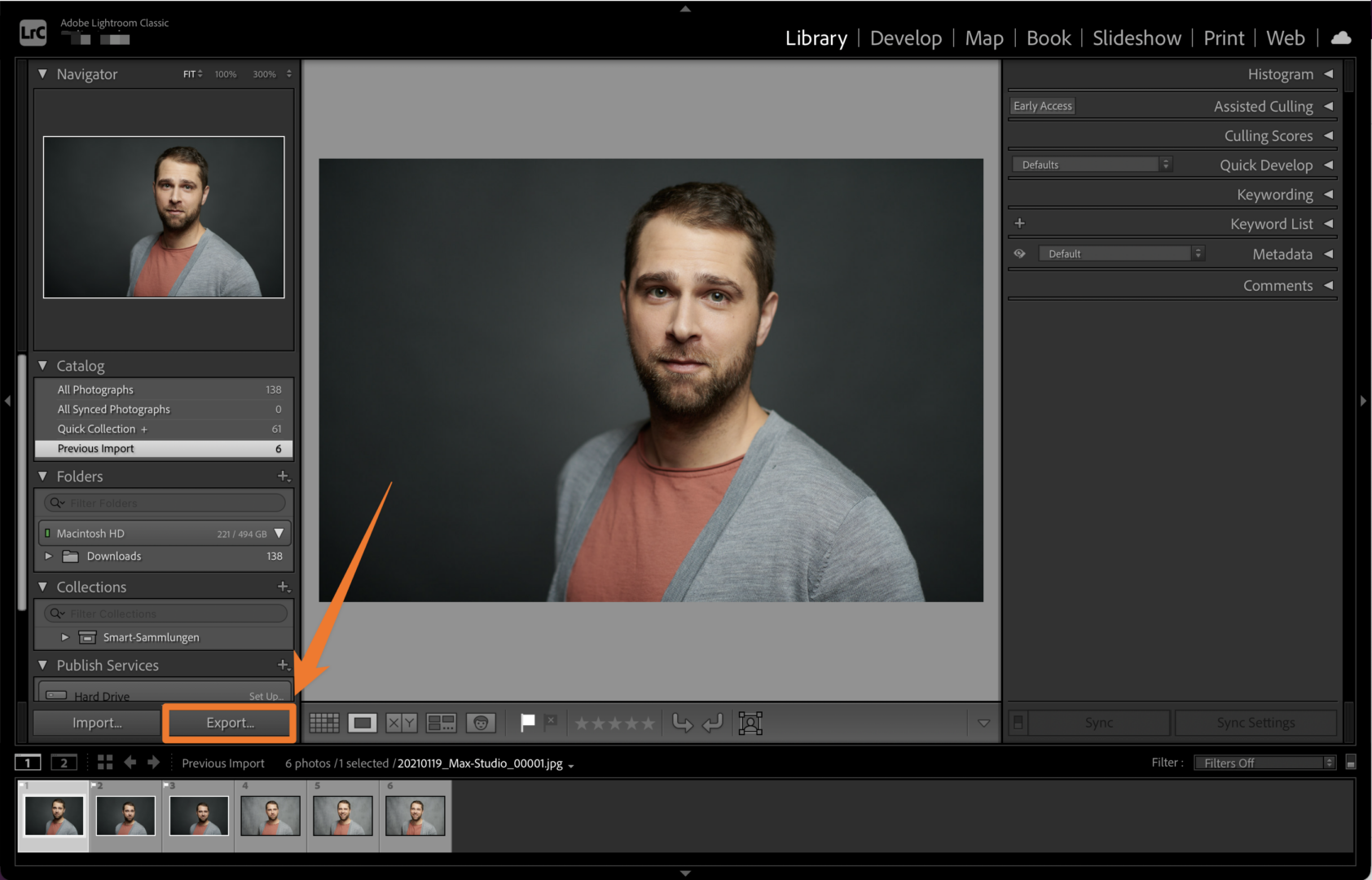
- Click “Export” in the bottom left corner of Lightroom.
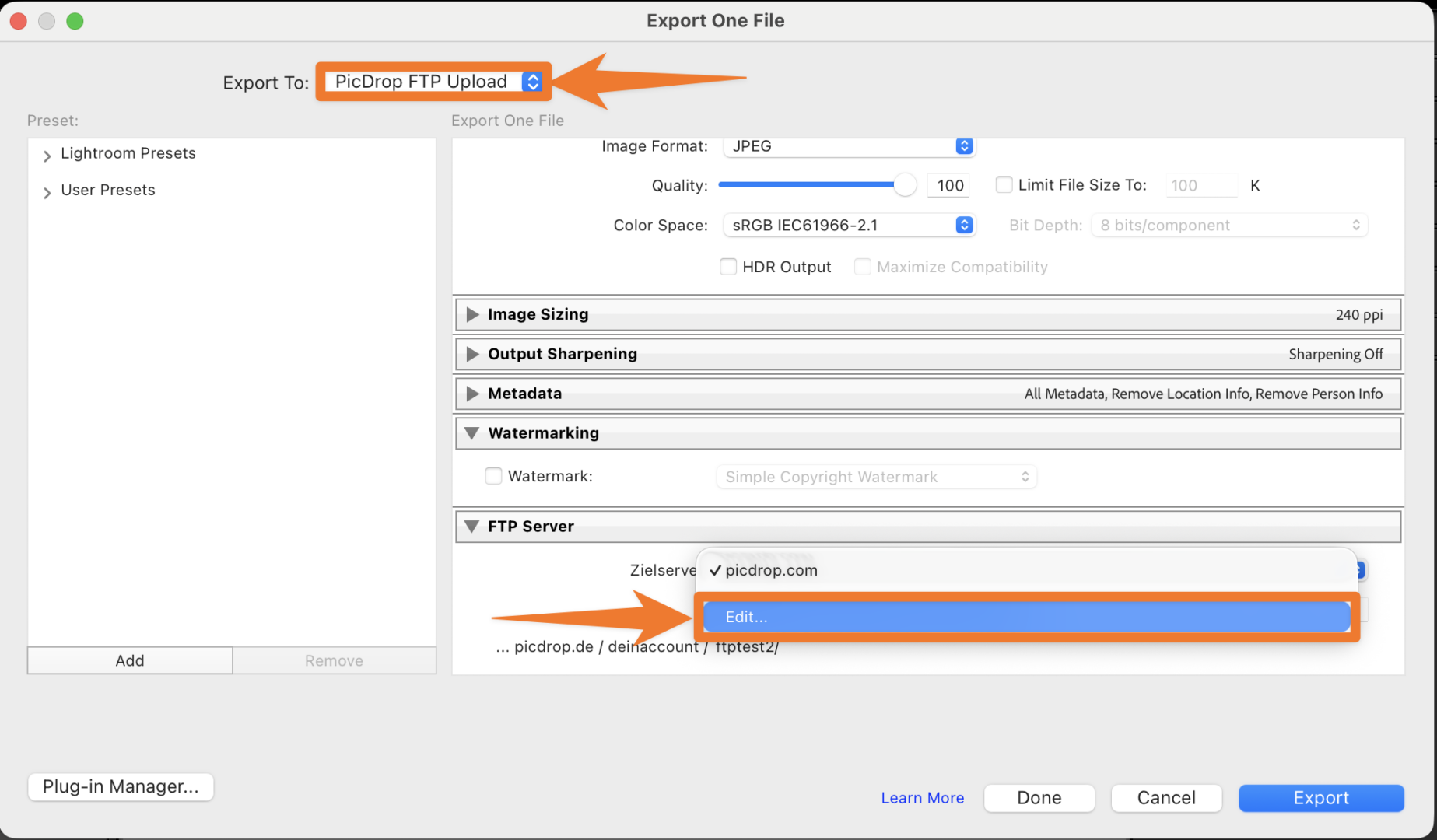
- Open the settings for the FTP file transfer: To do this, select Export to: picdrop FTP Upload from the drop-down menu at the top. At the bottom right in the FTP Server area, click on the menu for the destination server (Zielserver). And click Edit … In the drop-down menu.
- Update the preset for the FTP file transfer: Enter the username and password from the FTP settings here.
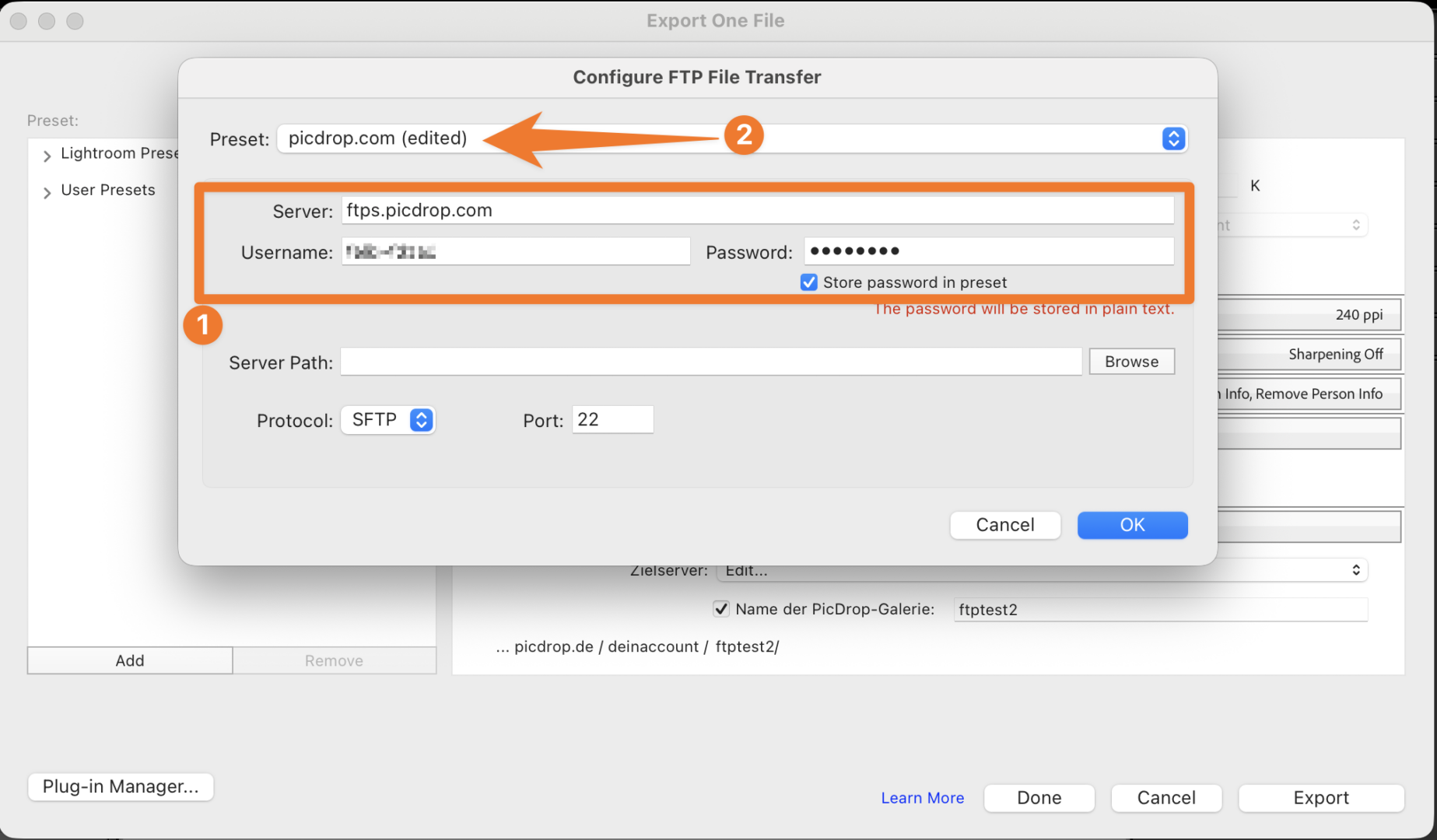
- Attention: Do not click OK yet, but first click on Preset: picdrop (edited) and…
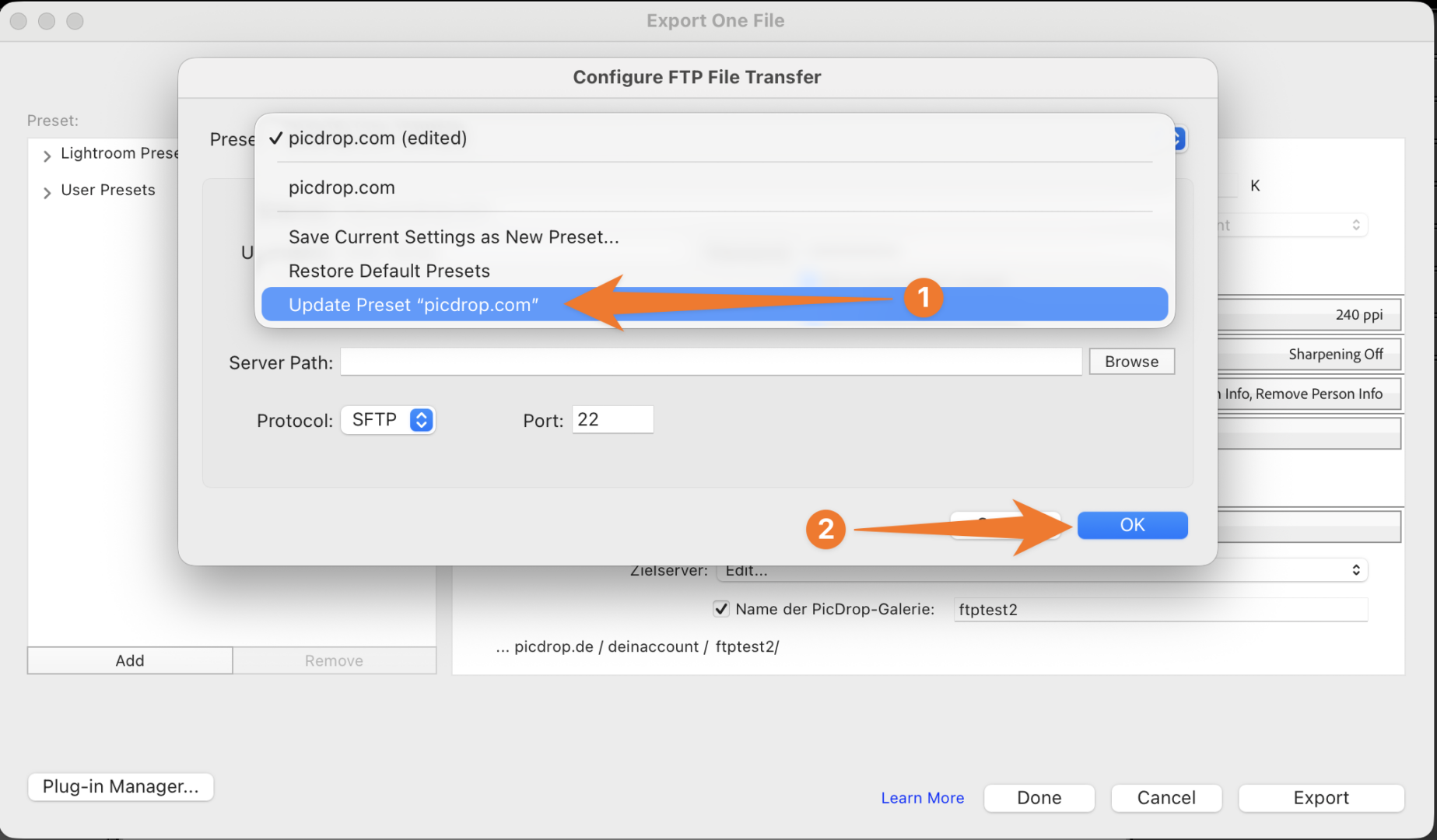
- … select the last item in the drop-down menu, Update Preset “picdrop”, klick ok→ done!
FTP Clients
Cyberduck:
- Use the picdrop data table with FTPS – Port 21
- Right-click on the existing server
- Click “Edit Bookmark”
- Enter the new login credentials (security protocol: FTP-SSL)
- Connect to the server
FileZilla:
- Use the picdrop data table with SFTP – Port 22
- Click on “File” and “Site Manager” in the top left corner
- Select the existing server
- Enter the new login credentials (SFTP and port 22)
- Click “Connect”
Transmit:
- Use the picdrop data table with FTPS – Port 21
- Right-click on the connection → “Edit”
- Enter the new login credentials (FTP with TLS/SSL)
- Click “Save”
Forklift:
- Use the picdrop data table with SFTP – Port 22
- Right-click on the saved connection → “Edit”
- Enter the new login credentials (SFTP Port 22)
- Click “Save”
Camera upload via FTP:
If you upload your images directly from your camera to picdrop, we recommend using our Live Push feature.
You can find all information about it here: https://www.picdrop.com/web/faq/live-push
Photo Mechanic:
- Use the picdrop data table with FTPS – Port 21
- Click on “Connections”
- Select “Selected Uploader” and choose FTP v6
- Enter the new login credentials (via FTP v6)
- Enable “Enable FTP over TLS?”
- Click “OK” and then “Send”