
With File Versions, you can upload new versions of a file (for example after retouching or editing) without losing previous files. This makes it easy for you, your clients, and team members to keep track of originals, retouches, and revisions.
How do File Versions work?
If a file already exists in your gallery and you upload a new file with exactly the same filename, picdrop recognizes this and offers you three options:
- Add as Version: The new file is saved as the current version. The previous version remains available.
- Skip: The file is not uploaded.
- Overwrite: The existing file is overwritten. All previous versions of that file are permanently deleted.
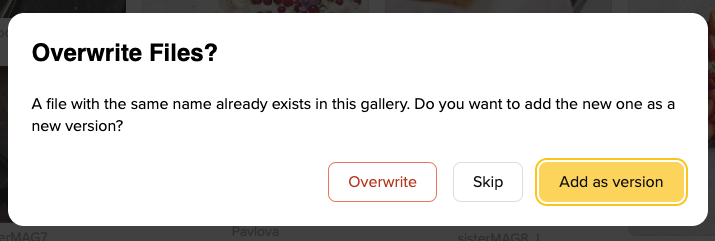
You must choose Add as version if you want to keep earlier editing stages of your files.
Where can I see a file’s versions?
Open the file in the detailed view by clicking on it. There you’ll find the timeline with all available versions.
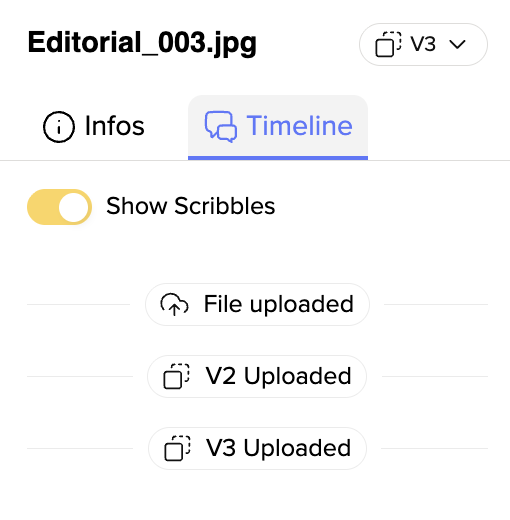
Depending on your permissions (if you are a teammember for example), you can:
- Compare versions using the timeline
- Download individual versions
- Restore an older version
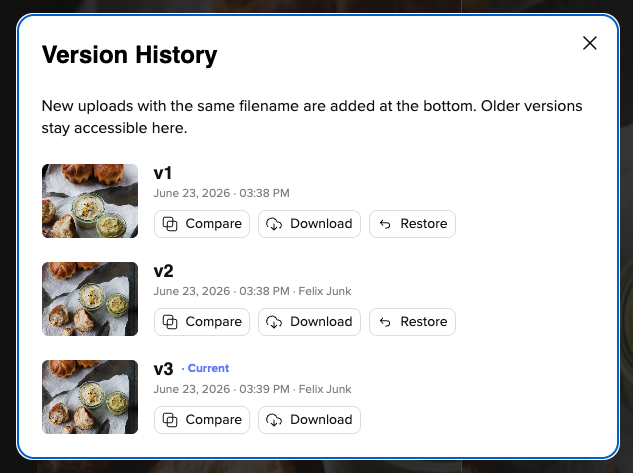
As account-owner, you can of course do all of this.
In the detailed view of a picture you can also see a comparison between different versions and in different styles (Side by Side, Slider, Trigger)

The latest version is always displayed automatically in the gallery.
Important: Only image files can be previewed and compared visually. For videos, PDFs, and other file types, version history is available, but previews and comparisons are not.
Can clients see File Versions?
Yes. Clients can view available versions and compare them with each other.

However, they cannot restore older versions or download individual versions directly.
When is a new version detected?
A new version is only detected when a file with exactly the same filename is uploaded to the same gallery. Similar filenames or slightly renamed files are treated as separate files. Likewise, picdrop does not analyze or compare image content.
Do File Versions count toward storage?
In short: Yes. Every uploaded version is stored in the gallery and counts toward your picdrop account’s storage usage.
What happens if I disable File Versions?
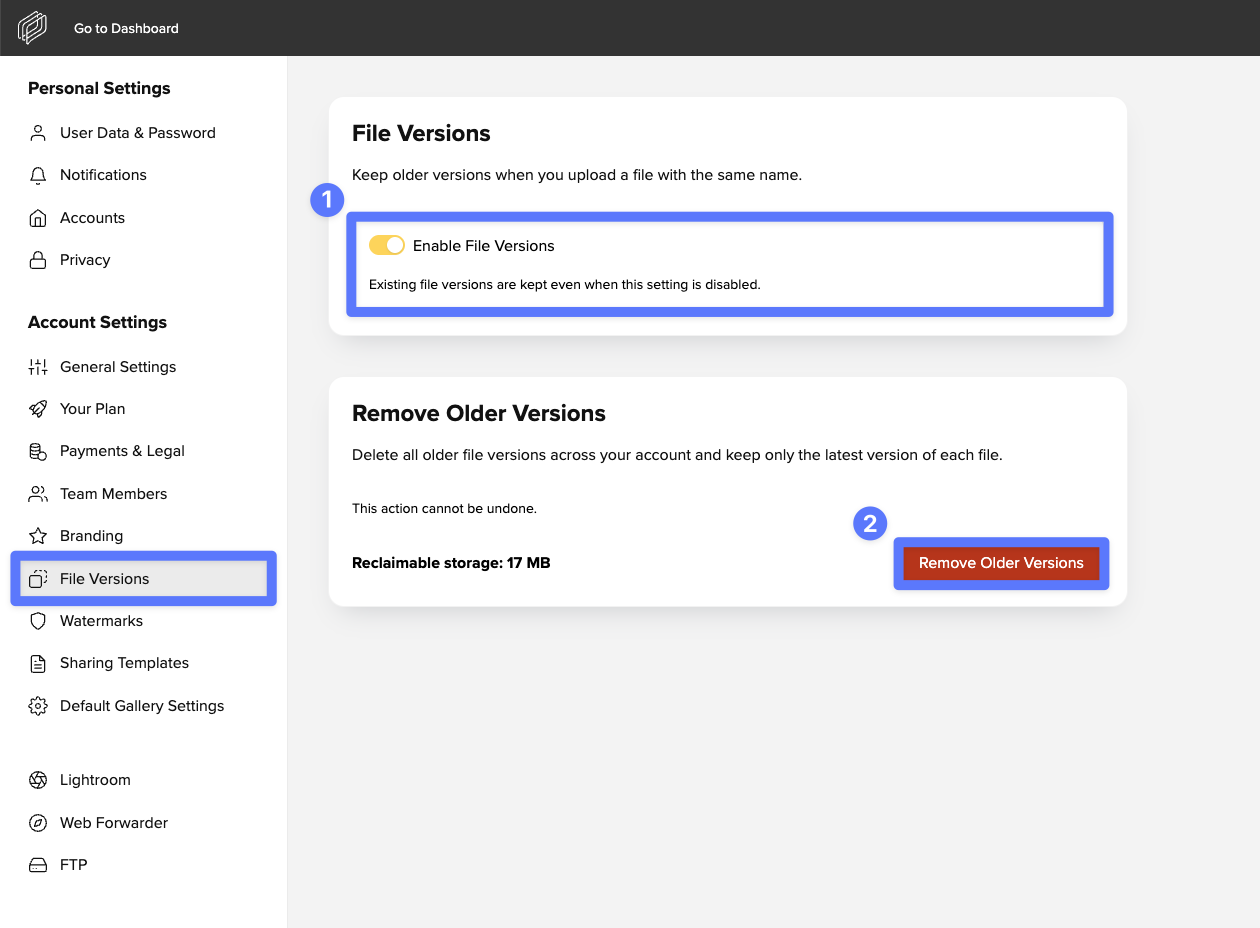
You can disable File Versions in your account settings (1). Existing versions are not deleted, but hidden. If you enable File Versions again, your file versions will become visible again as well.
How do I delete old versions?
To free up storage space, you can remove older versions in your account settings (2). The current version of each file will be kept, while all older versions will be permanently deleted. This can be done for individual galleries or for all versions across your entire picdrop account.
Important: This action cannot be undone.
Which plans include File Versions?
File Versions are available starting with the Pro plan and are also included in the Advanced and Business plans.