

Do you have images, videos, or PDFs in Dropbox that you would like to add to a picdrop gallery? With Cloud Import, you can now import them directly from Dropbox into your picdrop account. Simply select what you need, and picdrop takes care of the rest.
How Cloud Import works
Connect your Dropbox account once in your account settings under “Connected Apps”. Then open the upload dialog in the gallery where you want to add your files and click “Import files” under Dropbox.
Choose individual files or entire folders. picdrop checks your selection before the import starts and lets you know about any known limitations. The import then continues in the background, so you can close your browser. We’ll send you an email as soon as it’s complete.
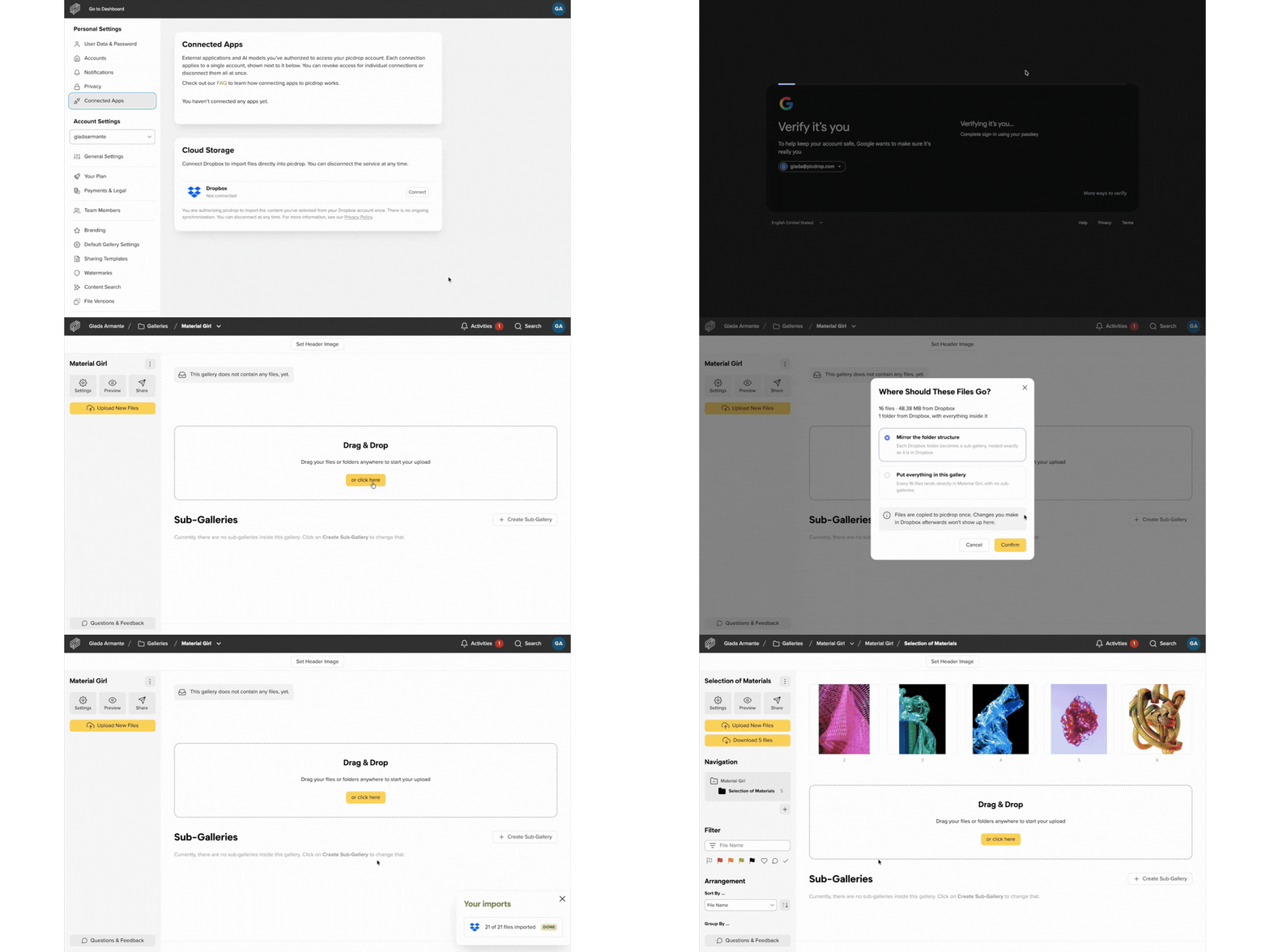
Keep your folder structure
When you import folders from Dropbox, picdrop can keep their existing structure. The folders you select are created as matching sub-galleries in picdrop.
That means you do not have to rebuild your project structure by hand. What is organised in Dropbox stays organised in picdrop.
Why Cloud Import is helpful for photographers
If you have organised files for a shoot, client delivery, or collaboration in Dropbox and want them in a picdrop gallery, Cloud Import brings them directly into the right gallery.
This removes extra steps and helps you get your files ready for clients faster. In picdrop, your clients can mark, rate, and comment on images directly. This lets you keep feedback and image selections in one place. Your folder structure can be kept too, so everything stays organised just as you set it up.
Why Cloud Import is helpful for teams
If your team organises projects, campaigns, or brand assets in Dropbox, Cloud Import lets you move them directly into the right picdrop gallery.
Instead of downloading files locally, your team can import them directly into the gallery where they are needed. In picdrop, you can manage multiple projects in one account and share individual galleries with the relevant team members, clients, or external partners. The visual overview helps you quickly find projects and images.
This saves time, removes unnecessary steps, and helps everyone work with the same clear project structure.
Good to know
You can import images, graphics, videos, and PDFs that are supported by picdrop. Each import can include up to 2,000 files, 500 folders, and files up to 1 GB each.
Files that are already in the target gallery are skipped and listed in the import report. You can cancel an import at any time. Files and galleries that have already been imported successfully will remain available.
One import can run at a time for each connected Dropbox account. Additional imports are automatically queued and start once the previous import is complete.
Cloud Import currently supports Dropbox only. You can disconnect Dropbox at any time under “Connected Apps” in your account settings.
Try it now
With Cloud Import, you can move files and folders directly from Dropbox into your picdrop gallery.
You’ll find answers to frequently asked questions in our Cloud Import FAQs. If you have any other questions or feedback, you can always contact our support team at hello@picdrop.com.