
How do I import files and folders from Dropbox into picdrop?
With Cloud Import, you can upload files and folders directly from Dropbox to your picdrop account. You do not need to download the files to your computer first.
The folder structure from Dropbox can be retained: corresponding sub-galleries are created in picdrop from the selected folders.
How do I connect my Dropbox account to picdrop?
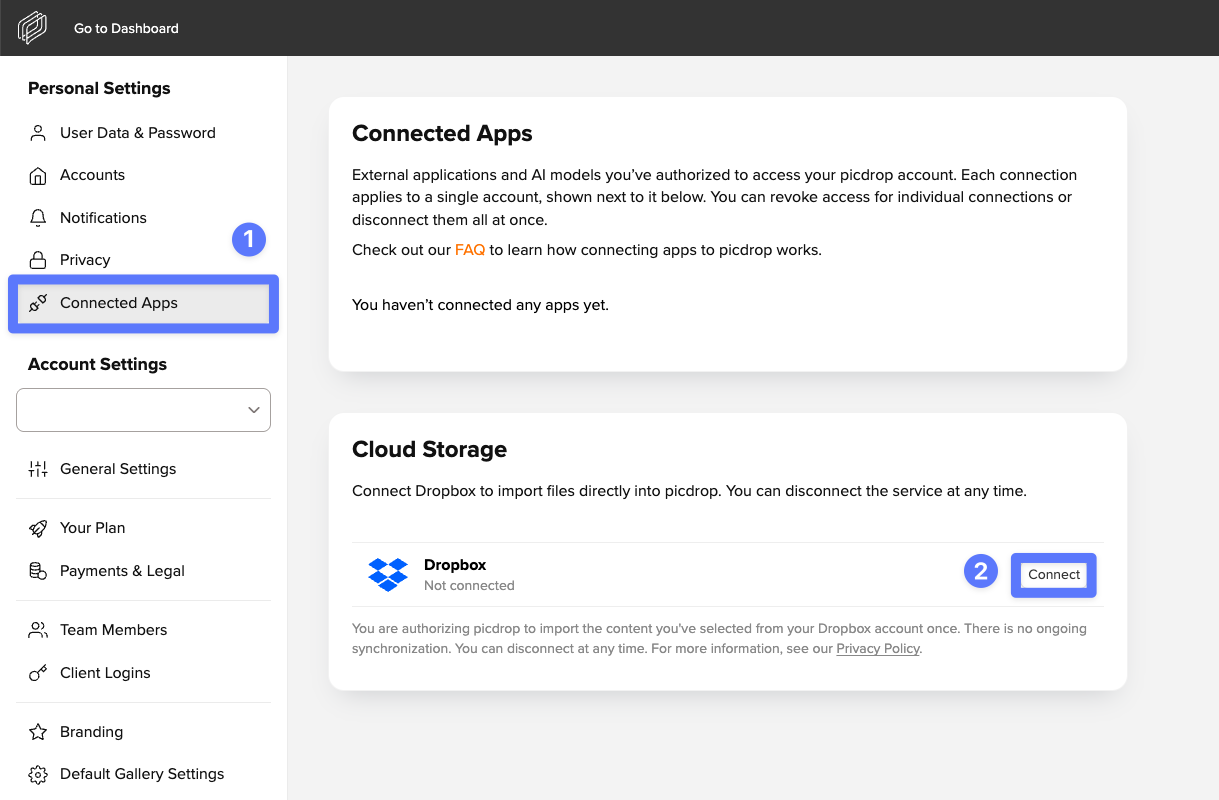
You can connect your Dropbox account to picdrop in your account settings under “Connected Apps”. There, click “Connect” under “Cloud Storage”.
You will then be redirected to Dropbox, where you can confirm access. Your Dropbox login details are stored in encrypted form.
How do I start an import from Dropbox files?
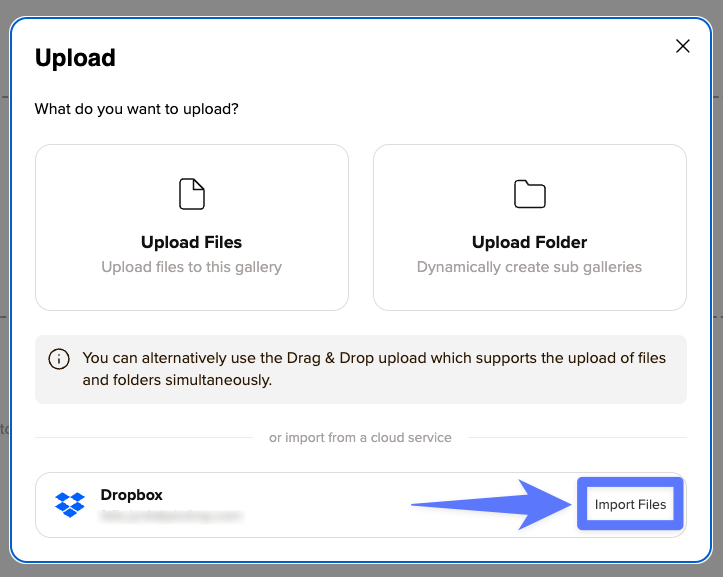
Open the upload dialog in the picdrop gallery you would like to import your files into. Under Dropbox, click “Import files” and then select the folders or files you would like to import.
picdrop checks your selection before the import starts and directly shows you any known limitations. The import then runs in the background – you can close your browser. Once the import has been completed, you will receive an email.
What type of files can I import?
You can import image, graphics, video, and PDF files that are supported by picdrop. You can find a list of all supported file formats here: What file formats does picdrop support?
The following limits apply to each import:
- a maximum of 2,000 files
- a maximum of 500 folders
- a maximum of 1 GB per file
Files that are already in the target gallery will be skipped and displayed in the import report.
Will the folder structure from Dropbox be retained?
Yes. When you import folders from Dropbox, the structure can be retained. The selected folders are then created as sub-galleries in picdrop.
Can I cancel an import?
Yes. You can cancel an import at any time. Files and galleries that have already been successfully imported will remain; no further files will be transferred.
What happens if a file is changed or deleted in Dropbox?
If a file is changed or deleted in Dropbox while the import is running, it may not be possible to import it and it will be skipped.
What happens if Dropbox slows down the import?
Dropbox may temporarily slow down individual accounts. In this case, the import will wait automatically and continue as soon as Dropbox allows transfers again.
Can I start multiple imports at the same time?
Initially, only one import can run at a time per connected Dropbox account. Additional imports are automatically added to the queue and start once the previous import has been completed.
What happens if my Dropbox connection expires?
If the connection to Dropbox has expired or has been revoked, you will need to connect your Dropbox account to picdrop again under “Connected Apps”.
Can I also connect other cloud providers?
Currently, only Dropbox is supported.
Can I disconnect my Dropbox account again?
Of course, you can disconnect it at any time. To do so, go to “Connected Apps” in your account settings and click “Disconnect” next to Dropbox.