
You want to upload your images directly from the camera to your picdrop gallery and you need your shots in picdrop as fast as possible? Then our new Live Push feature is perfect for you.
What is the Live Push feature in picdrop?
With Live Push, images can be transferred directly from a camera to your picdrop account via FTP (FTPS). While you’re shooting, your images are automatically uploaded into a selected gallery. Live Push can be used to receive images from external photographers without sharing your picdrop login credentials — or to connect your own camera(s) directly to galleries in picdrop. The FTP access you create for this is restricted to uploading into the configured gallery only.
Where can I find the Live Push feature in picdrop?
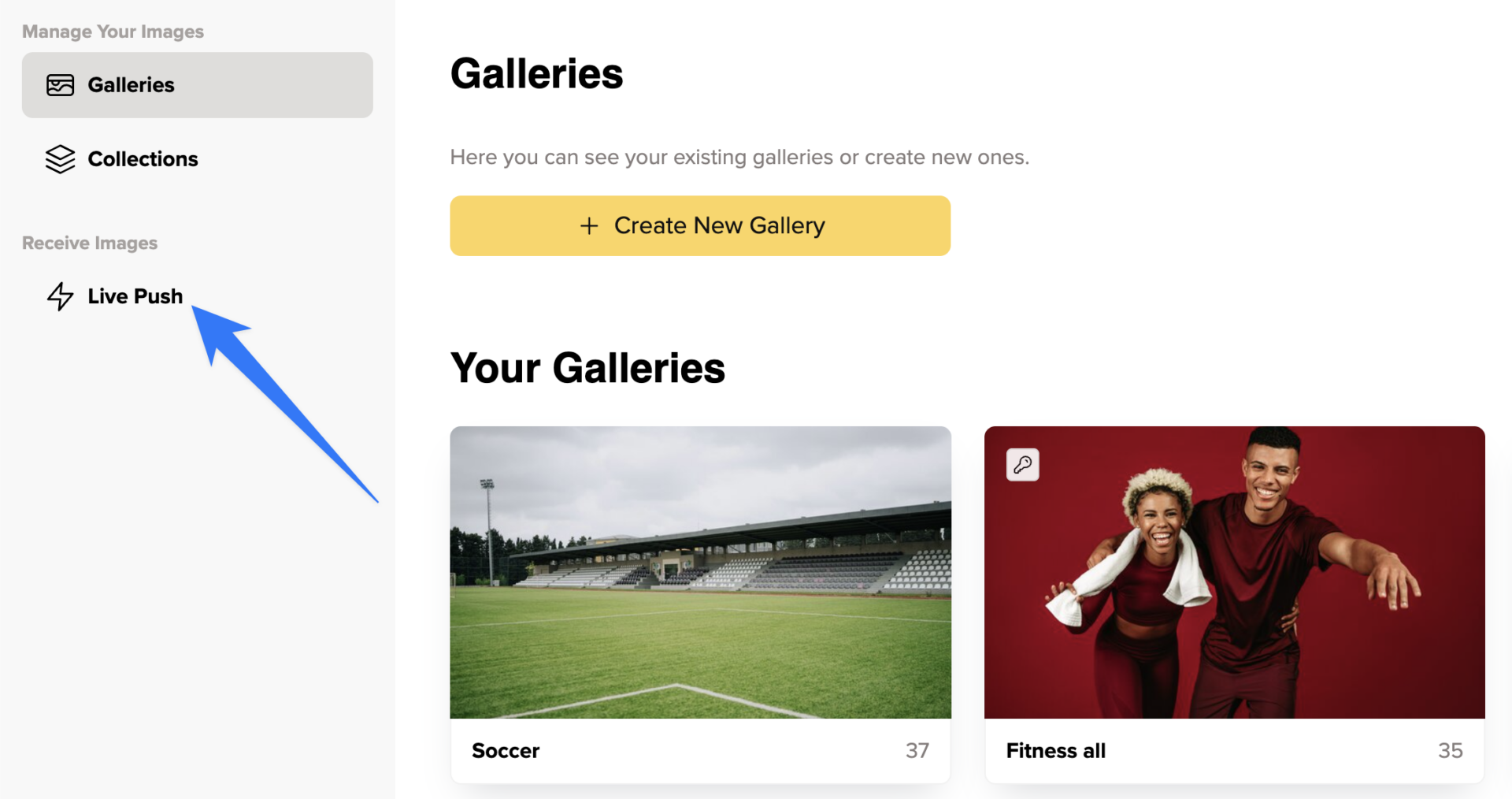
You can create and manage Live Push connections via the gallery overview in the “Live Push” section.
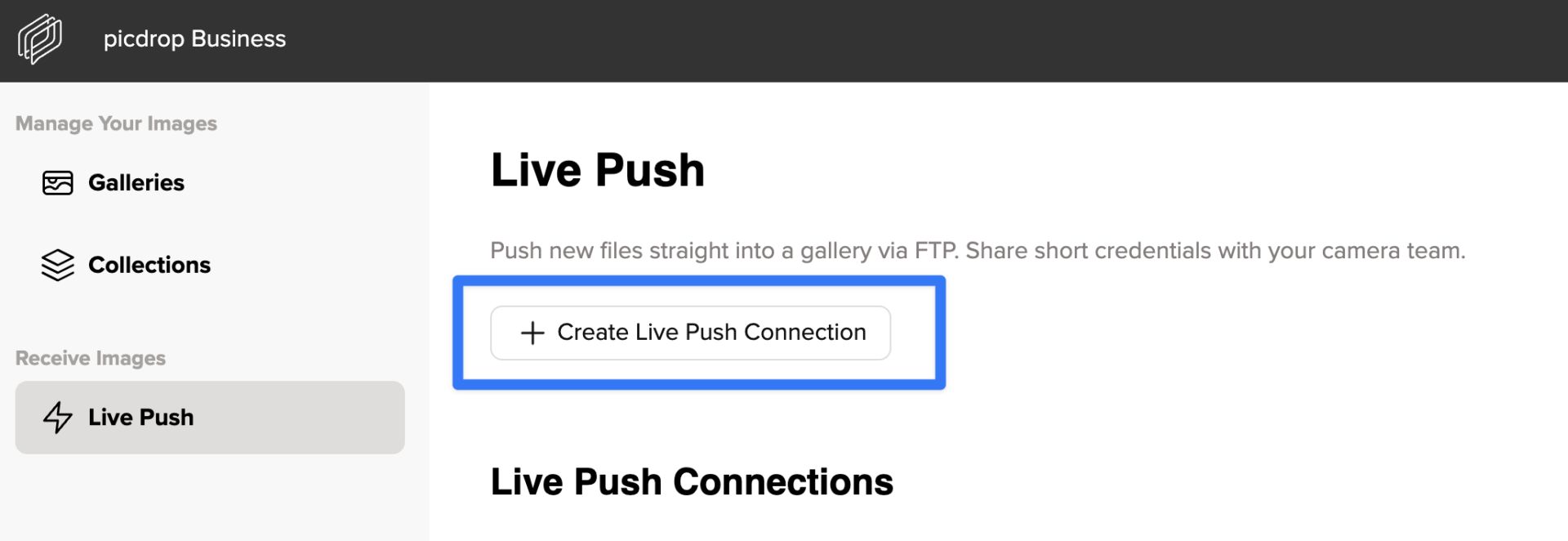
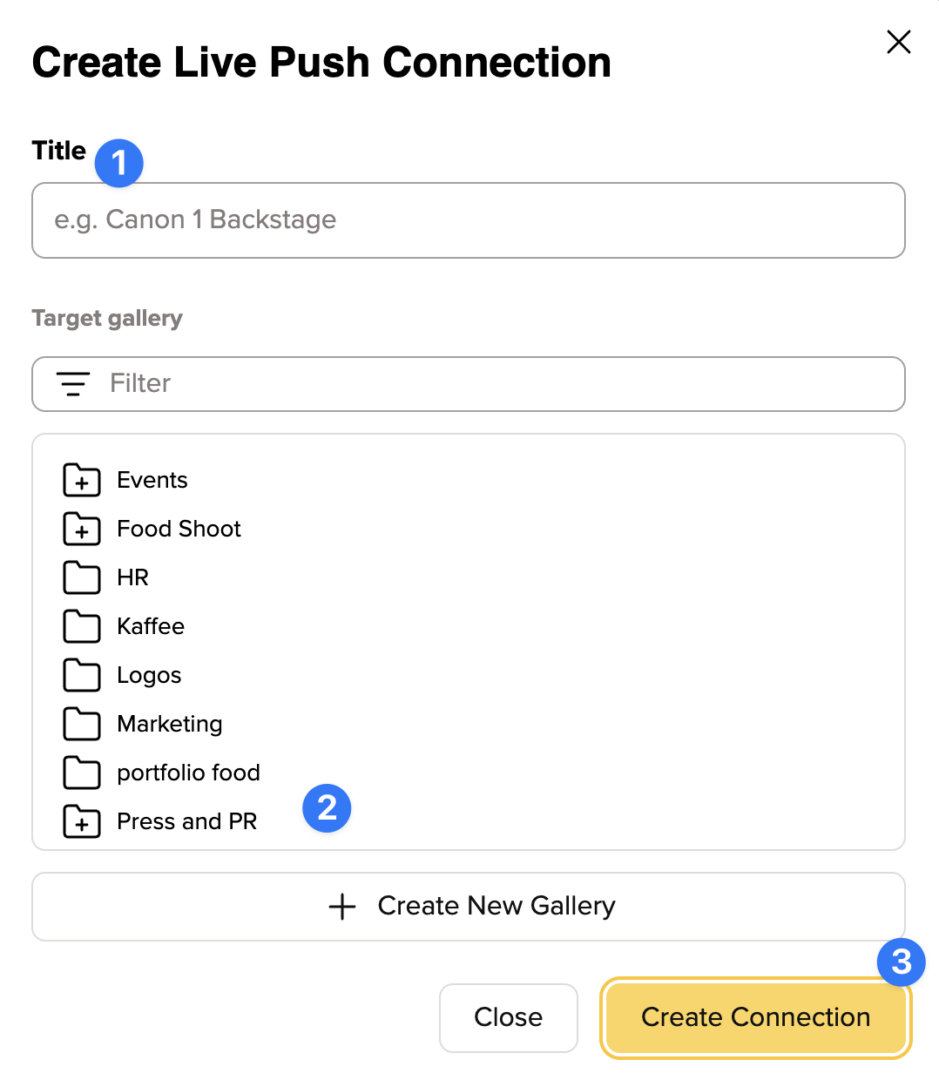
When creating a new connection, you assign a title (1) and select a target gallery (or create a new one, 2) before setting up the connection (3).
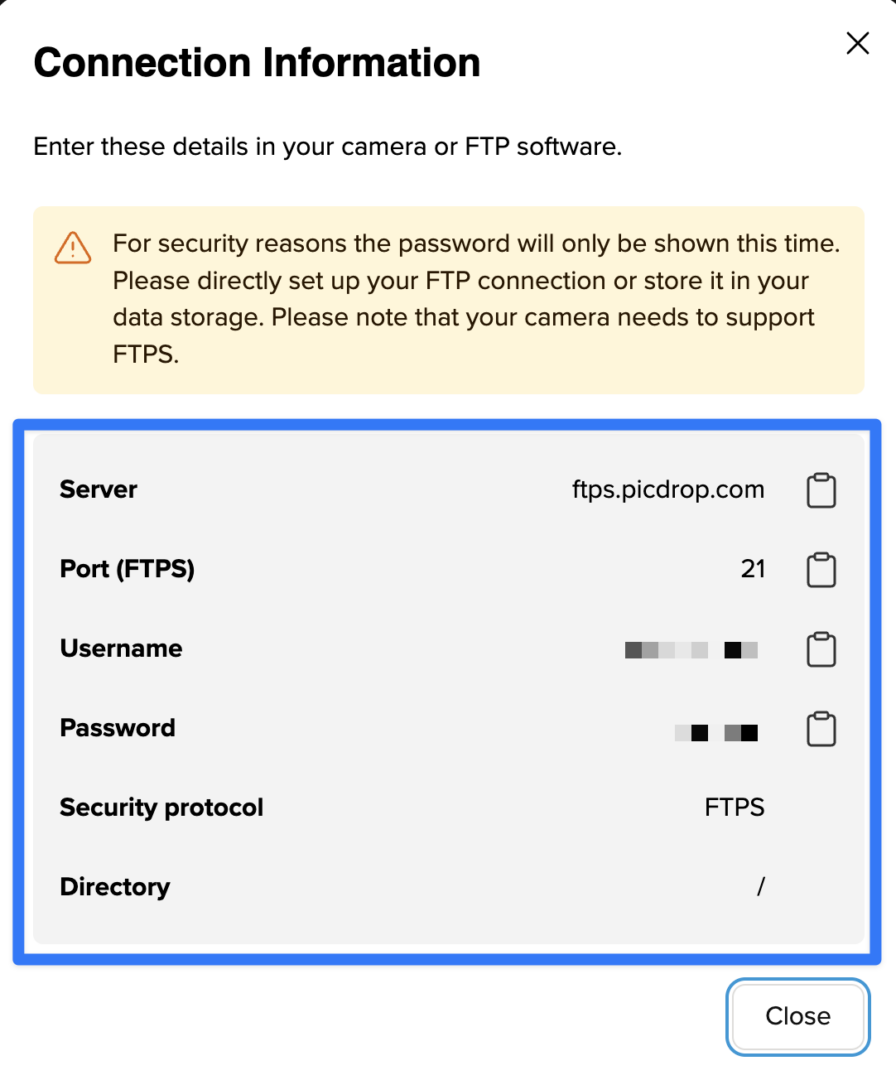
After that, you’ll receive the connection credentials that you or your photographers need for setting up the connection from the camera to the defined picdrop gallery.
You can edit existing connections at any time via the three dots on the right side of each connection.
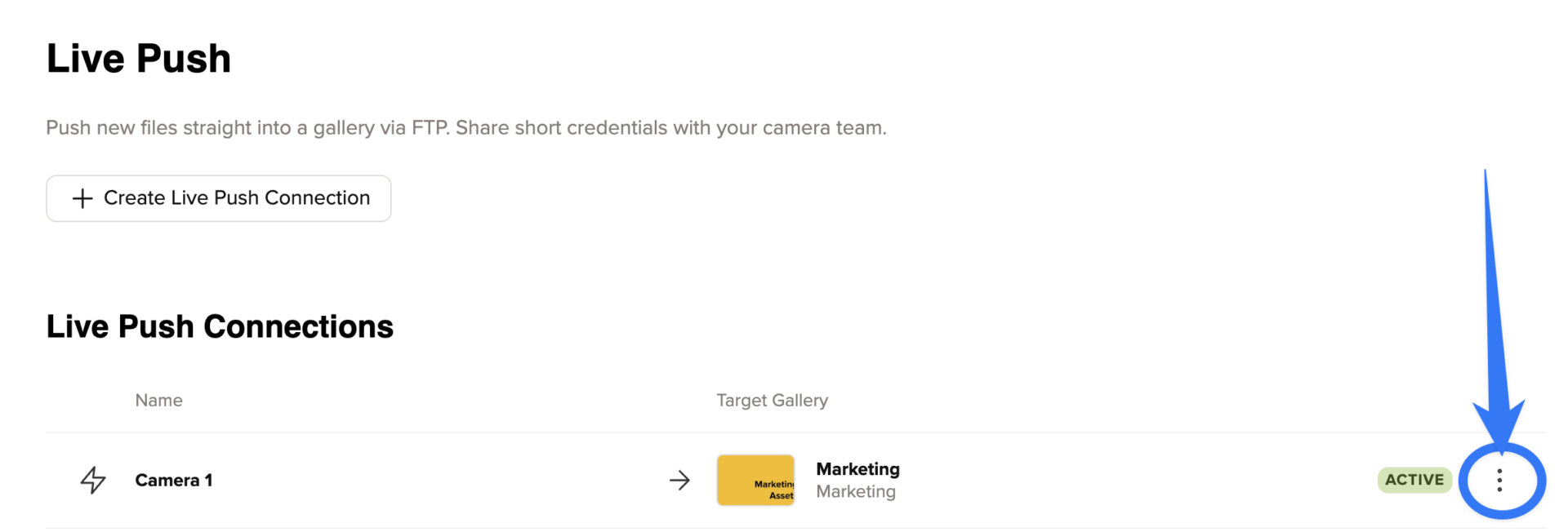
From the menu that appears, you can reset the password, deactivate or delete the connection, view the credentials, or jump straight to the target gallery.
Which plans include the Live Push feature?
Depending on your plan, you get a different number of Live Push connections. The Business plan includes unlimited connections, the Advanced plan has 5 connections and the Pro plan includes one connection. Live Push is not available in our Free plan.
Which cameras can I use with Live Push?
Live Push works with cameras that support FTPS (FTP over SSL).
This includes models such as:
– Canon: EOS R5, EOS R6, EOS-1D X Mark III
– Nikon: Z6 II, Z7 II, D6
– Sony: Alpha 1 (A1), A9 II, A7R V
Setup is done directly in the camera’s network settings.
You can find detailed instructions in the official manuals from the manufacturers:
Canon: https://cam.start.canon
Nikon: https://downloadcenter.nikonimglib.com
Sony: https://www.sony.de/electronics/support/cameras-camcorders
And in various videos, for example:
Canon R5 – https://www.youtube.com/watch?v=AYZdluI-9d8
Nikon Z8 & Z9 – https://www.youtube.com/watch?v=T3rkXeCo-W4
Sony Alpha 1 – https://www.youtube.com/watch?v=RHfU3eklSr0
Please note that the exact steps may vary depending on the camera model. For a reliable use of Live Push, your camera must support FTPS and have a stable internet connection during the shoot.
More Tips:
- Check beforehand whether there is good wifi connection at the location of your shooting and if you are allowed to use it. Your camera must always be online to upload.
- Alternatively, set up your own wifi with your smartphone or a mobile hotspot device to be more independent of third parties. The choice of the right device and the right provider is crucial and depends on your location. Although cheaper network operators in large cities are often just as fast and good as expensive ones, in rural areas they often travel at an edge speed.