
With picdrop Inbox, you can collect files from clients, service providers, or other freelancers — simply by sharing an Inbox link.
Request files through the Inbox
Your Inbox can be found in the left sidebar of your gallery overview. Every account includes a public Inbox (“Public”) by default. This Inbox can be disabled, but not deleted.
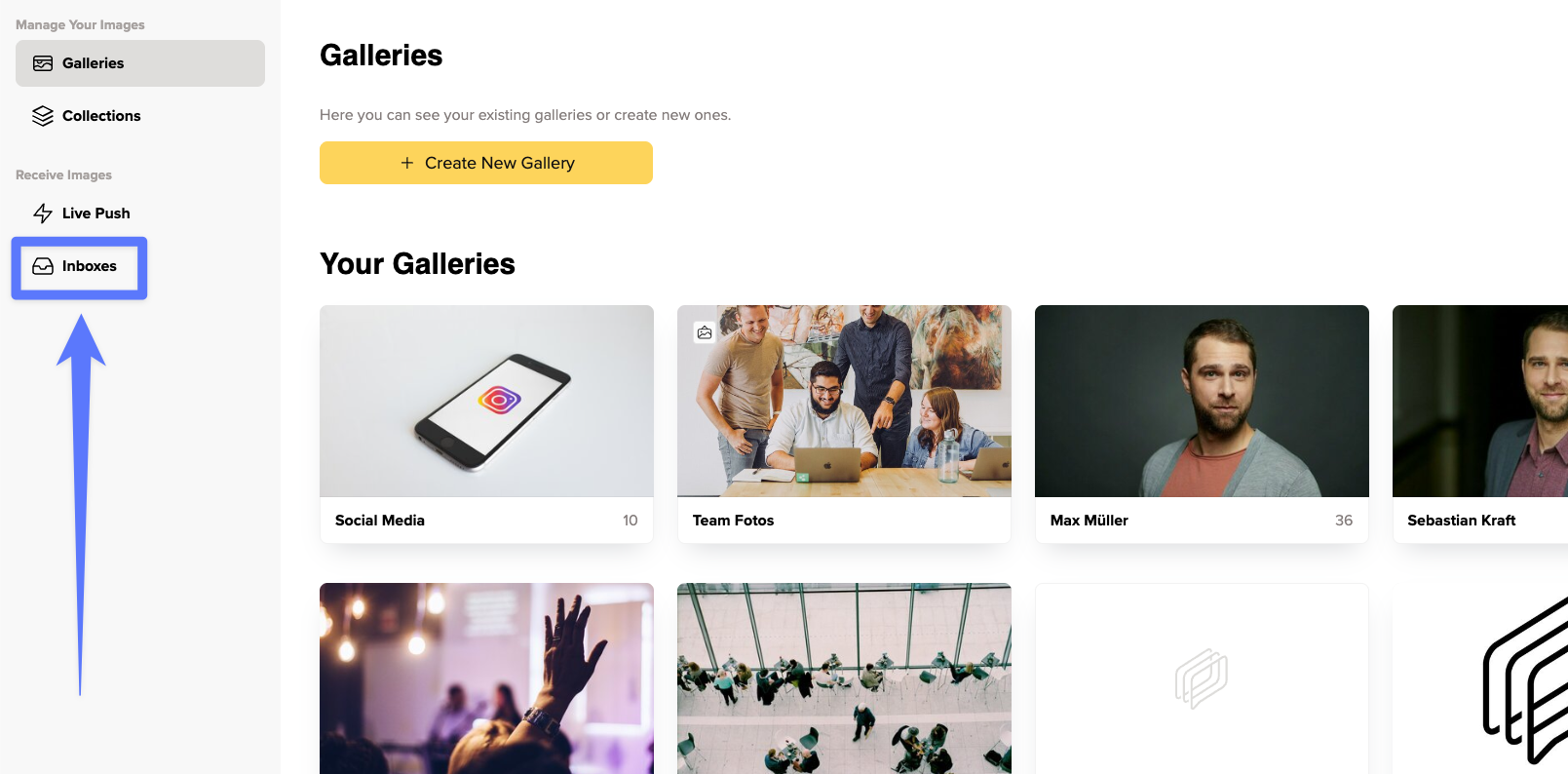
You can also create additional Inboxes for specific shoots, projects, or clients. Simply click “Create New Custom Inbox” to set one up.
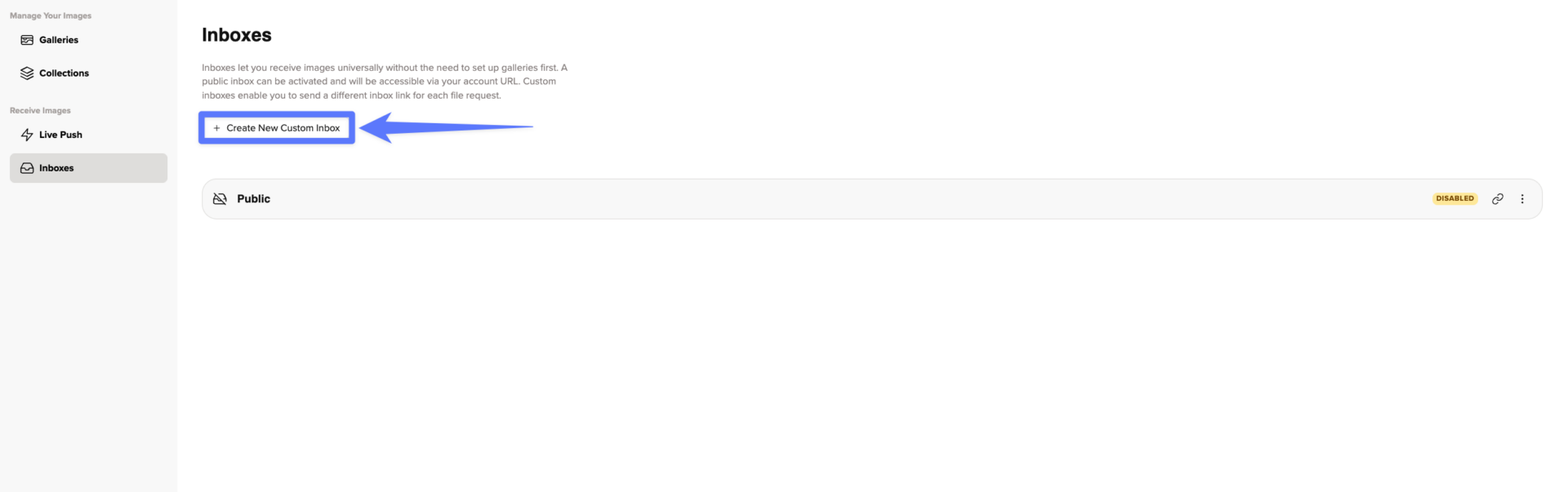
Setting up a custom Inbox
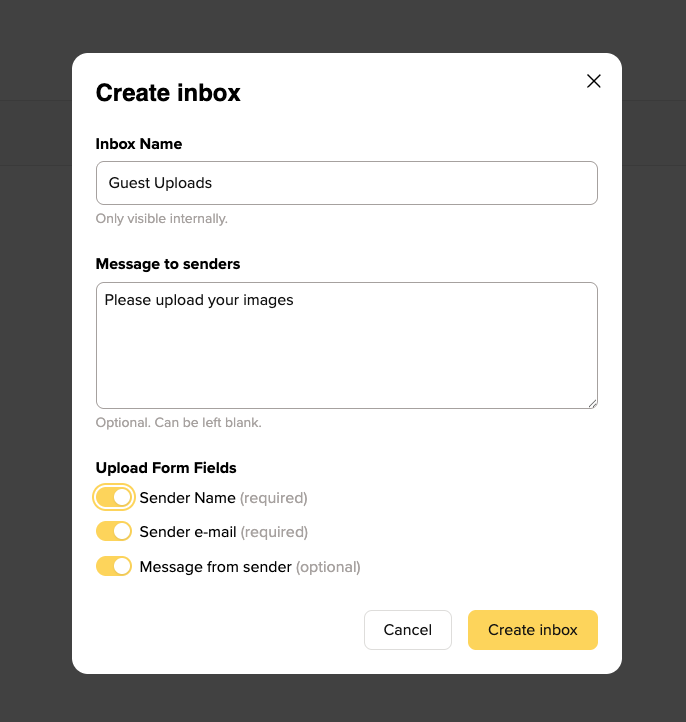
When creating an Inbox, you can configure a name, a personal welcome message and optional required fields for file submissions
For example, you can choose whether people uploading files must provide their name, email address, and/or a message.
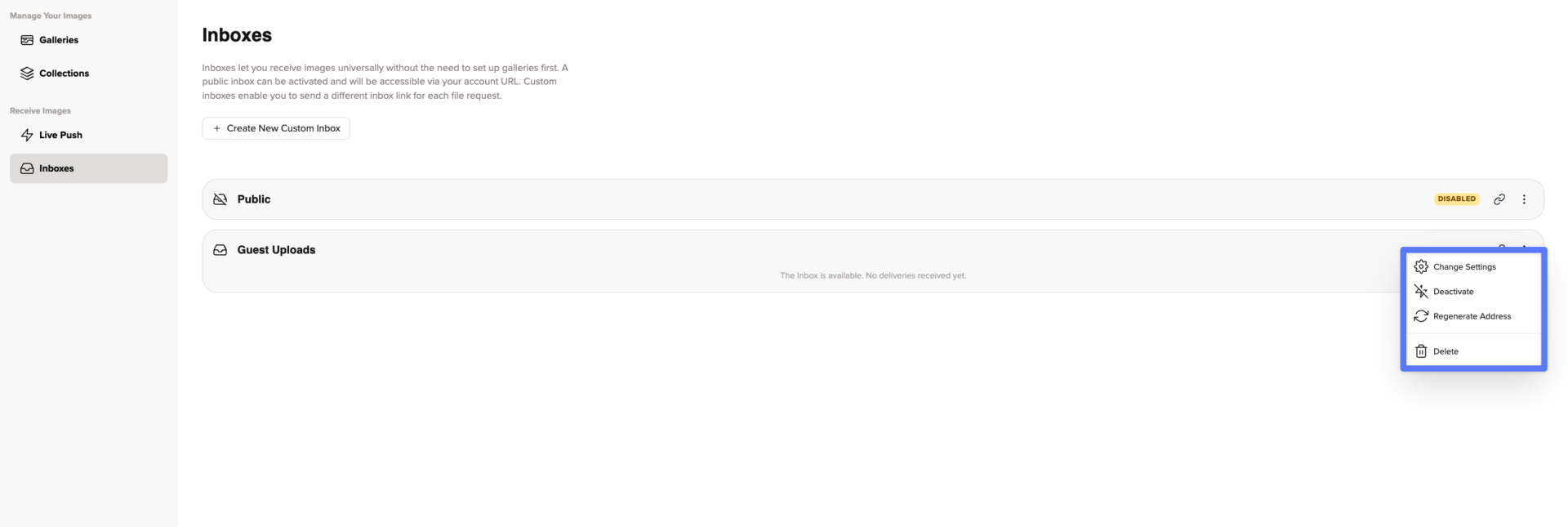
You can change an Inbox’s settings at any time. You can also:
- deactivate the Inbox
- delete it
- regenerate the Inbox address
Sharing an Inbox
To give someone access to an Inbox, simply copy its link using the button next to the Inbox and send it to them.
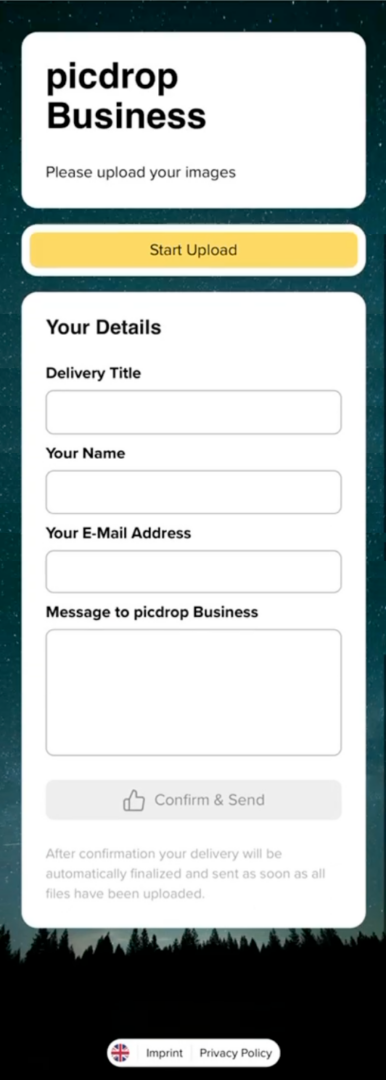
This is what the Inbox looks like for people uploading files:
On a mobile device
In a browser on Mac or PC
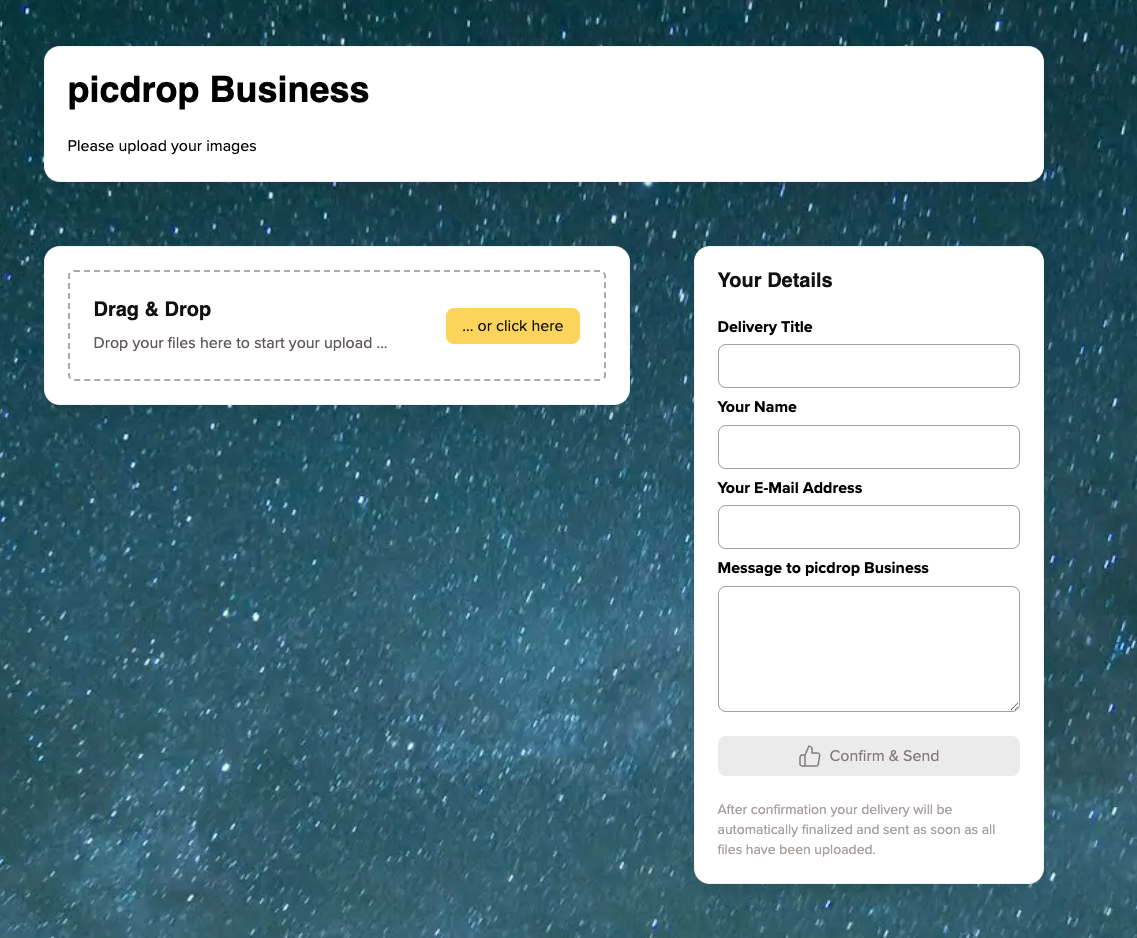
Visitors can then upload their files and submit them directly to your Inbox.
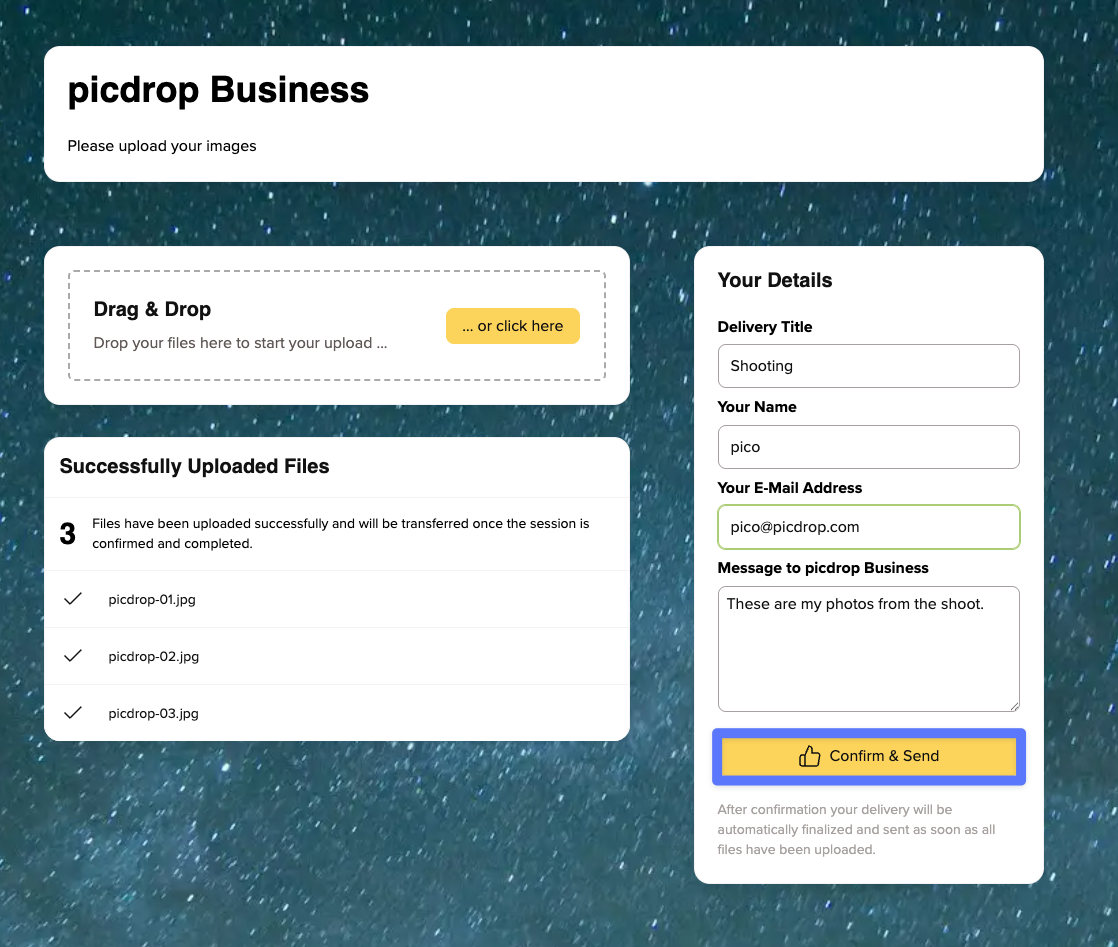
What happens after an upload?
As soon as files are uploaded, you’ll receive an email notification and a number will appear next to the corresponding Inbox.
This number indicates how many open submissions are waiting for review and remains visible until you accept or reject them. To review a submission, open the corresponding Inbox.
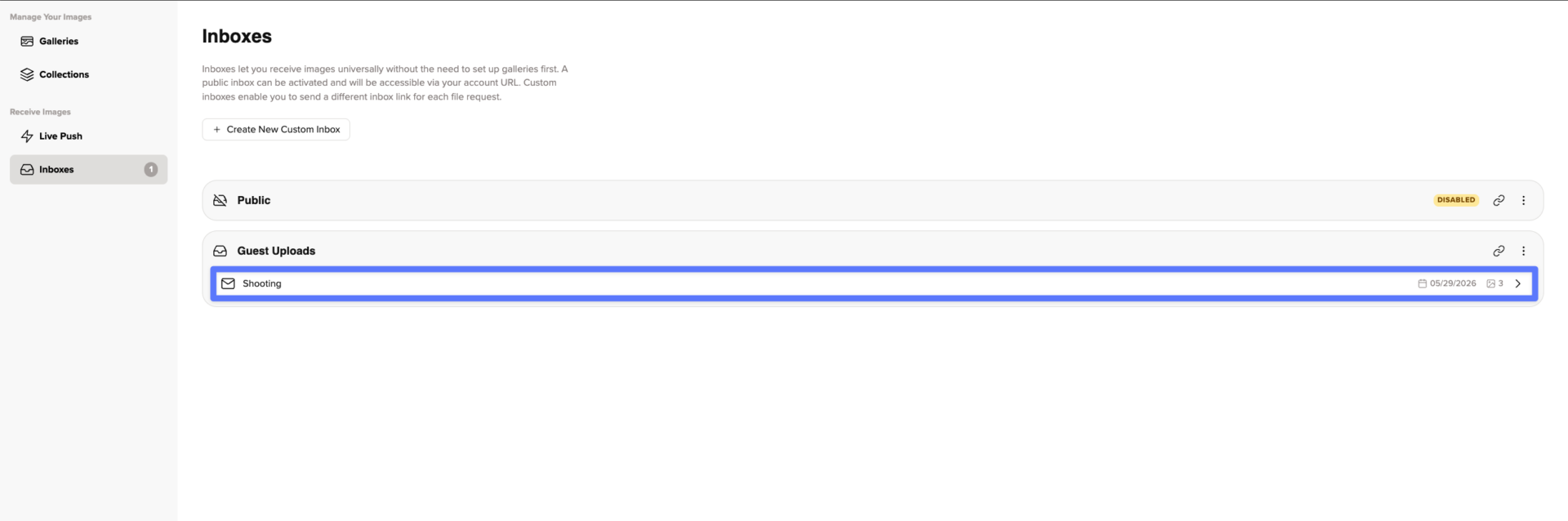
There you’ll find:
- all uploaded files
- the sender’s name, email address, and message (if those fields were required)
Accepting or rejecting files
You can move submissions from the Inbox into an existing gallery, create a new gallery from them, or reject them.
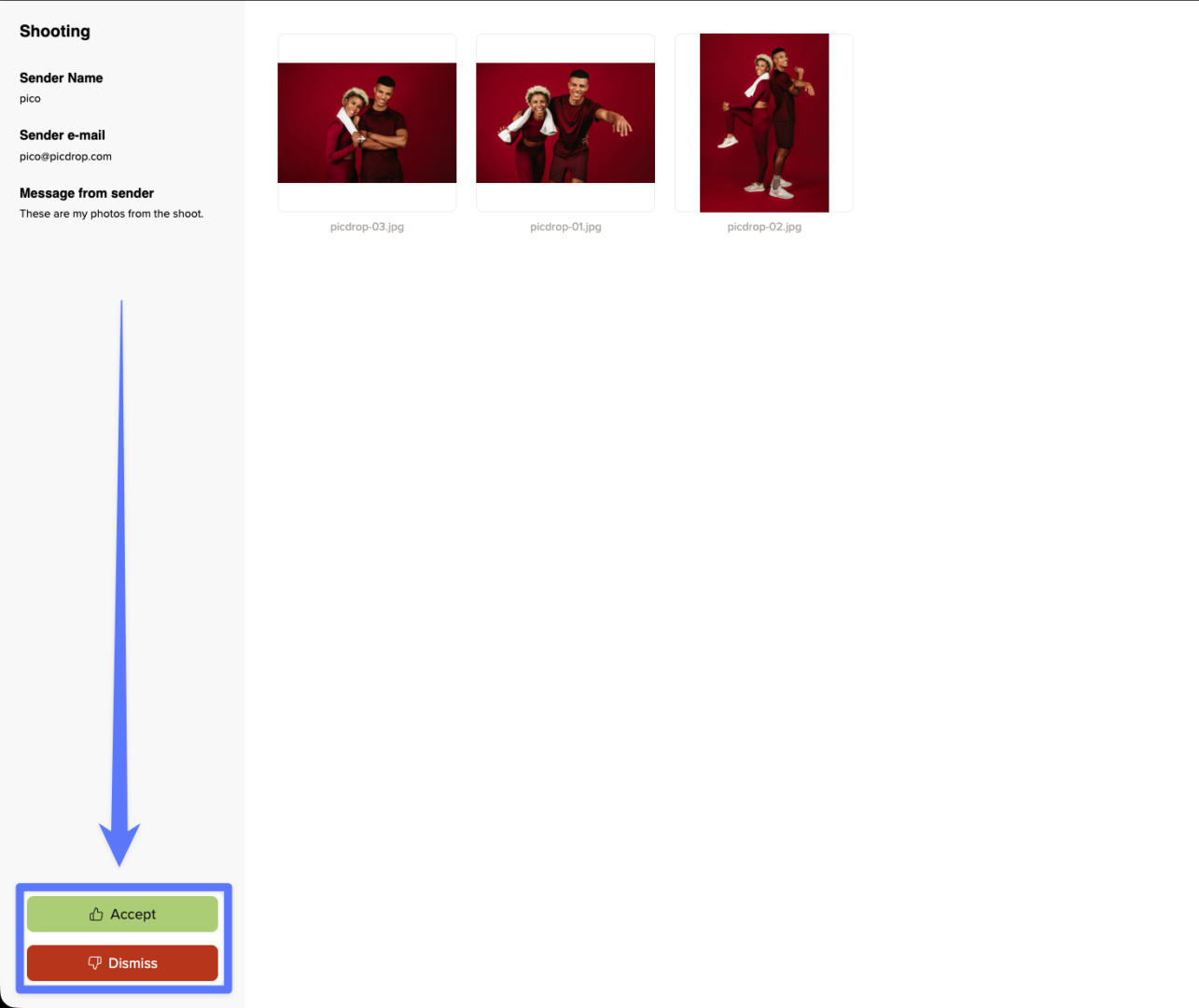
If you reject a submission, all uploaded files will be permanently deleted.
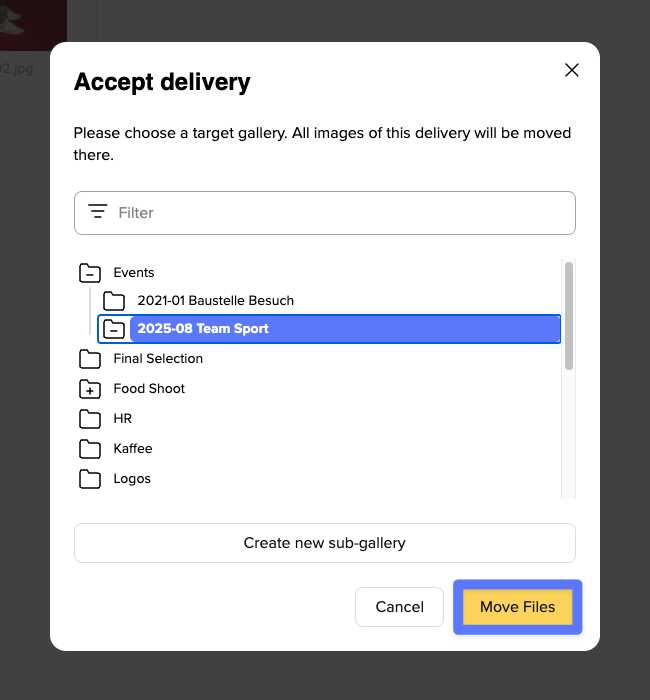
Once files have been accepted and moved into a gallery, the submission disappears from the Inbox and the Inbox becomes empty again.
Disabling or deleting an Inbox
If you no longer need an Inbox, you can delete it using the three-dot menu.
If a project is only paused, you can simply disable the Inbox and reactivate it later.
Are there any limitations?
Your Inbox is part of your picdrop account and therefore counts toward your available storage.
This means that uploads can only be accepted if they fit within your available storage space.
Files uploaded through Inbox must also be in a format supported by picdrop. For a complete list of supported file types, see our file format FAQ.
Which plans include the Inbox?
Inbox availability depends on your subscription:
- Pro Plan: Public Inbox only
- Advanced Plan: Public Inbox + up to 3 additional custom Inboxes
- Business & Enterprise Plans: Public Inbox + unlimited custom Inboxes
Inbox is not available in our Free plan.